Key takeaways
-
Shopify can display video through product media, theme sections, uploaded files, and supported embedded-content options without requiring a shoppable video app.
-
Ordinary Shopify video explains a product or sets a mood, while shoppable video connects a moment in the content to a product-discovery action.
-
A native video is usually enough when one clip supports one known product; a shoppable video app deserves evaluation when one clip shows several products or appears before product choice.
-
The right decision depends on the viewer’s starting page, the number of products shown, and how many steps separate the video from the relevant product page.
-
As of September 2026, merchants should test the product path created by video rather than judging the setup by video plays alone.
Shopify can host ordinary video without an app
If you are asking, “can I put a video on Shopify,” the short answer is yes. Shopify stores can use video in product media and in theme-controlled page areas without a dedicated shoppable video app. Native video is a sensible starting point when the clip has one clear job: show how a product fits, demonstrate a feature, explain setup, or add context to a campaign page.
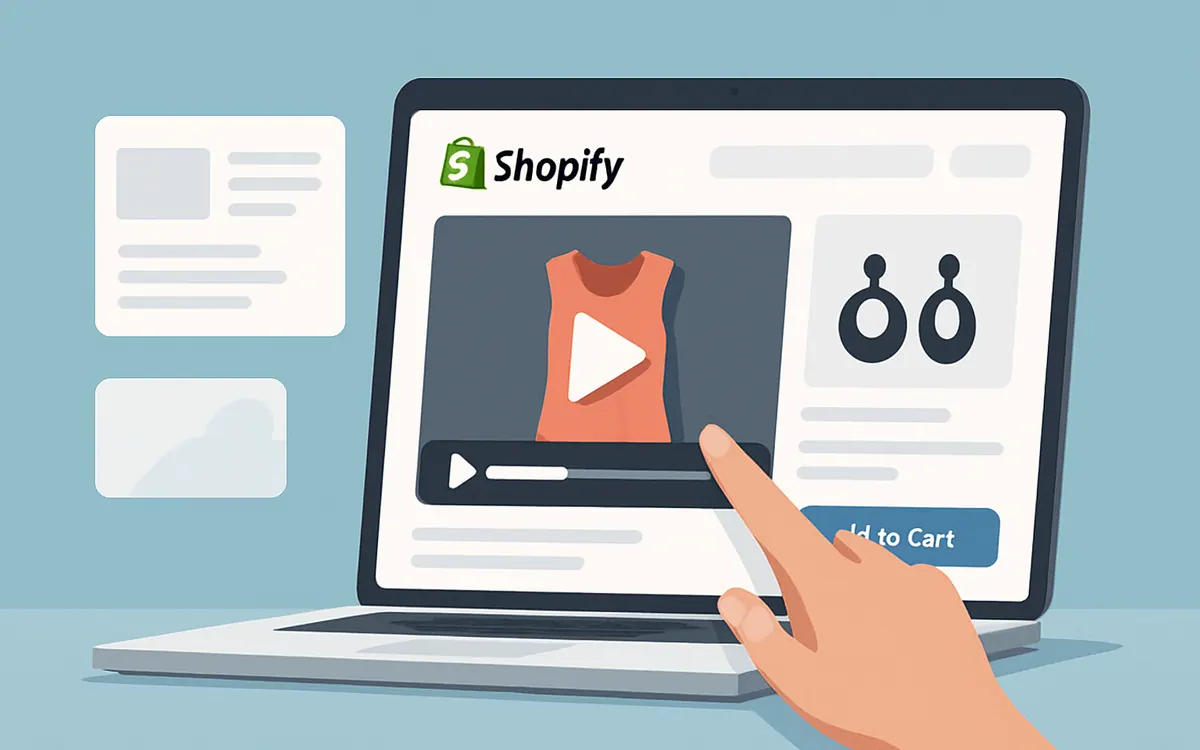
The exact route depends on the page and theme. A merchant may add a video to a product’s media gallery, place an uploaded file in a theme section, or use a supported external video source where the theme allows it. Product media is the most direct option for one SKU because the video sits with the product information. A homepage or landing-page section is better suited to a collection story, launch message, or brand introduction.
Native video has practical benefits. It avoids another app subscription, keeps the implementation smaller, and gives a content team one straightforward asset-to-page relationship. A product manager can attach a fit demonstration to the relevant product instead of maintaining a separate video catalog. The trade-off is that the video normally behaves as page media rather than as a merchandising layer. A viewer can watch the clip, but may still need to scroll, search, or open a collection to find the item shown.
Check the current Shopify admin instructions and the limits associated with the selected plan, file route, theme, and device experience before publishing. MP4 and MOV are common formats for Shopify video workflows, but acceptance, file size, playback, poster images, autoplay, captions, and mobile behavior should be confirmed in the upload or theme interface you will use. A tutorial written for a different theme can give the wrong answer for your storefront.
For a native setup, use this sequence:
- Choose one product or collection where video answers a real buying question.
- Add the clip through the product media or theme area that owns the placement.
- Test playback on mobile with sound off and on a slower connection.
- Check whether the viewer can reach the exact product without using site search.
- Keep the video if it clarifies the decision; change the setup if it only adds decoration.
Merchants who want a placement-specific walkthrough can compare this decision with How to Add Video to a Shopify Product Page: 4 Methods. The important distinction is that adding video and connecting video to commerce are separate jobs.
Native video and shoppable video solve different jobs
The defining difference is the product path. Ordinary product video presents information. Shoppable video connects content to a product-discovery action, such as opening the item shown, selecting a related product, or continuing into a product page. A clip can look polished and still be non-shoppable if the viewer has no product route at the relevant moment.
Consider a footwear store. A native product video can show a model walking in one pair of trainers. That answers questions about movement, scale, and styling. If the clip appears on that trainer’s product page, the shopper already has a route to the product. A shoppable experience becomes more useful when the same clip contains three pairs of shoes, a jacket, and a bag. The viewer needs a way to identify and select each item without guessing which products appear on screen.
The same distinction applies across categories:
- A makeup tutorial can use native video to demonstrate technique. Shoppable video becomes more relevant when the viewer needs to reach the shade, brush, or other product shown at a particular point.
- A room tour can establish visual context with ordinary video. A commerce-oriented version helps the viewer move from the sofa, lamp, or rug in the scene to the relevant product page.
- A creator unboxing can support one known product with native media. A shoppable version is more useful when the clip includes accessories, bundles, or several products from the catalog.
- A product launch video can use one button when one product is the only destination. Multiple product paths matter when the launch story introduces a range.
A video placed beside a button is not automatically a shoppable video. One general call to action may send every viewer to a collection. A shoppable experience maps content to a more specific product route. The choice depends on the number of products shown, the amount of product comparison required, and the cost of making the viewer leave the video to search.
NiagaraT’s Hyper Shoppable Videos is relevant when store video needs to function as a product-discovery path. Evaluate the app against the interaction your videos require rather than treating every embedded clip as a reason to install an app.
When does native Shopify video stop being enough?
Native Shopify video stops being enough when the video is responsible for helping a shopper choose among products, but the current implementation only plays the clip. The strongest signal is a mismatch between what appears in the frame and what the viewer can reach afterward.
Use these decision rules:
- One video, one product, product page: Start native. The shopper has already identified the product, so the video mainly needs to answer a reassurance question.
- One video, one product, homepage or campaign page: Native may still be enough if one clear button leads to that product. Test the number of steps before adding a commerce layer.
- One video, several products: Evaluate shoppable video. A general collection link makes the viewer identify the products independently.
- One video, several variants: Evaluate whether the viewer needs to reach a specific variant or only the parent product. If the clip depends on color, size, or configuration, a generic destination may create friction.
- Creator or UGC video: Native is suitable when the featured item is already named beside the clip. A connected product path is more useful when the creator wears, uses, or mentions multiple items.
- Homepage video as visual catalog: Treat this as a product-discovery problem, not just a media problem. A shoppable setup deserves testing when shoppers need to browse from scenes to products.
Content volume changes the operational decision. Ten product videos attached to ten product pages may be easy to manage with native media. One hundred creator clips across a homepage, collections, and campaign pages create a different maintenance problem. The issue is not just uploading files. Product associations must remain accurate when inventory, variants, campaigns, and featured collections change.
A useful threshold is two questions. First, how many products does the shopper need to identify in this clip? Second, can the shopper reach each relevant product in one obvious action from the video? If the answer to the first is one and the second is yes, begin with native video. If the clip shows several products and the second answer is no, assess a shoppable video app.
A capability and use-case matrix makes the decision clearer
The matrix below separates a content requirement from a commerce requirement. The native column describes jobs that can often be handled with Shopify product media and theme capabilities. The shoppable column describes the point at which connected product discovery becomes part of the requirement.
| Criterion | What to check | Why it matters |
|---|---|---|
| Single-product demonstration | Is one product shown, and is the viewer already on its product page? | Native video may answer the buying question without another commerce layer. |
| Product detail | Does the clip explain fit, setup, texture, or use for one SKU? | Product media keeps the explanation beside the item being considered. |
| Homepage hero | Is the goal atmosphere, or must viewers select products from scenes? | A visual catalog needs clearer product routes than a brand introduction. |
| UGC or creator content | Does the clip feature one known product or several items? | Multiple featured items increase the cost of making shoppers search manually. |
| Collection merchandising | Is one collection destination enough, or must viewers choose an individual item? | A collection link may be too broad when the video shows specific products. |
| Product launch | Is there one launch destination or a range with accessories and bundles? | More destinations create more need for mapped product paths. |
| Tutorial | Are products secondary, or do viewers need the tools and products used? | Education and commerce require different calls to action. |
| Video feed | Is the feed editorial, or should every clip lead to a product? | A feed becomes a discovery surface when each clip has a shopping job. |
A simple rule follows: if one video maps to one product and the viewer already has a clear product-page route, start native. If one video maps to several products or appears before the shopper has chosen a product, evaluate a shoppable setup.
Do not use the matrix as a reason to install an app before checking the creative. A poorly framed clip, unclear product naming, or weak product page can waste the benefit of any interaction layer. First identify the product path. Then decide whether Shopify’s native page structure can provide it with an acceptable number of steps.
The viewer’s starting page changes the answer
The same video can need different treatment on different pages. On a product page, the shopper has already identified the item, so native video often does enough. On a homepage, the shopper may still be deciding which category or product deserves attention. A direct route from content to product becomes more useful there.
Use the viewer’s starting point as the first filter:
- Product page: Start with native product media when the clip concerns one product. Consider a commerce layer if the clip introduces related products or a set that needs separate routes.
- Collection page: Ask whether the video helps shoppers choose among products. A collection link may be sufficient for a broad story; product-level paths matter when individual items are visible.
- Homepage: Use native video for brand context or one featured destination. Evaluate shoppable video when the homepage video is acting as a visual catalog.
- Landing page: Match the implementation to the campaign. One offer can use one clear button, while a multi-product editorial page may need several product paths.
- Education or post-purchase page: Native video may be the better operational choice when the goal is setup, care, or support rather than discovery.
This page-first rule prevents a common mistake: installing a commerce tool to solve a placement problem. If the video belongs on a product page and shows only that product, the missing capability may be better product-page merchandising, not shoppable video. If the video is doing the work of a collection page without clear product routes, the app question is more credible.
Device behavior also matters. A desktop interaction that relies on hover may not translate to touch. A mobile viewer may watch without sound, in a narrow viewport, and with limited patience for an extra search step. Test the route with a real product: can a viewer identify the item, open its detail page, and understand what to do next using a thumb?
If video is only one part of a wider discovery issue, audit the surrounding path too. Hyper Search & Filter addresses a different layer by helping shoppers find products through search and filtering. It is not a substitute for product links inside video, but both decisions can matter when viewers leave video to browse a large catalog.
What should a Shopify merchant test before choosing an app?
Test one video, one page, and one intended product path before expanding the setup. A small controlled check reveals whether the problem is missing interaction, weak creative, slow playback, or an unclear destination.
Use this sequence tomorrow:
- Select a clip that shows one to three products and write down every product a viewer could reasonably want.
- Choose the page where the clip will appear, then record the current number of steps to reach each product.
- Publish or review the native version with a visible product destination where the theme supports one.
- Test on a current mobile device, desktop, sound off, and a slower connection.
- Ask a teammate who did not create the clip to name the featured product and reach it without site search.
- If the route breaks for multiple products, compare a commerce-oriented implementation against the same creative.
- Record product-path clicks, product-page visits, add-to-cart actions, and device differences.
Keep the creative constant during the first comparison. Changing the video, placement, headline, and destination at the same time makes the result difficult to interpret. The test is not intended to produce a universal conversion claim. It is intended to answer a narrower question: does connected product discovery remove a step that shoppers were otherwise expected to perform themselves?
Track the following fields in a simple worksheet:
- Page and placement
- Video length and file type
- Products shown and products linked
- Native or shoppable implementation
- Mobile and desktop sessions
- Video starts and meaningful watches
- Product-path clicks
- Product-page visits
- Add-to-cart actions
- Availability or variant issues
A play count is only a starting diagnostic. If viewers start the video but do not click a product, inspect the first frame, product visibility, captioning, loading, and relevance. If viewers click products but do not add them to cart, inspect price, stock, variant clarity, shipping information, and product-page content before blaming the video setup.
Merchants preparing a larger rollout can use the Shopify Shoppable Video Setup Checklist for Non-Technical Merchants to turn the test into a repeatable publishing process. The goal is not more video. The goal is fewer unnecessary steps between seeing a product and evaluating it.
Shopify video questions that affect the buying decision
Searchers often combine the video question with questions about policies, fees, revenue, and file formats. Those questions should be answered separately from the native-versus-shoppable decision. A file can be accepted by Shopify and still fail to help a shopper find a product. A shoppable interaction can improve a route and still require a compliant file, clear creative, and a useful product page.
Shopify rules and plan terms can change, so verify current details in the relevant Shopify admin screen and policy documentation before publishing. Do not rely on a file limit or transaction-fee figure from an old tutorial. The store’s payment setup, plan, country, and sales channel can affect the commercial details.
For video specifically, confirm four implementation points before launch: where the video is hosted, which formats and sizes the selected route accepts, whether the theme supports the intended placement, and how the video behaves on mobile. These checks prevent a common failure mode in which a merchant spends time deciding between native and shoppable video before confirming that the chosen asset can load properly.
For product discovery, confirm four different points: which products appear, whether each product is in stock, where the viewer lands after selecting it, and whether the destination preserves enough context to continue shopping. These checks are the practical boundary between ordinary video and commerce video.
FAQ
Can I put a video on my Shopify store?
Yes, you can put a video on a Shopify store through product media, theme sections, uploaded files, or supported embedded-content options. The best route depends on the page, theme, file source, and intended viewer action. Use native Shopify video when the clip explains one product or supports a page message. Consider a shoppable video app when viewers need to select products shown in the clip rather than simply watch it.
What does shoppable video mean?
Shoppable video means video connected to product-discovery actions that let viewers move from content to relevant products. The interaction may connect a featured item to its product page or provide several product routes from one clip. A video is not automatically shoppable because it appears beside a button; the destination needs to match the product or products shown well enough for the viewer to continue without guessing.
What are shoppable videos and how do they work?
Shoppable videos are commerce-oriented videos that associate content with products and give the viewer a route to evaluate those products. A typical workflow identifies the item shown, presents a relevant product action, and sends the viewer to a product or collection destination. The value depends on accurate product mapping, clear creative, suitable placement, and a product page that answers the next buying question.
What does “shoppable video Shopify” mean?
“Shoppable video Shopify” refers to using Shopify store video as a product-discovery surface rather than only as page media. Shopify can host ordinary video without an app, while a dedicated solution such as Hyper Shoppable Videos is worth evaluating when the video needs connected product paths. The decision should be based on the number of products shown and the page where shoppers start.
What is not allowed on Shopify video?
Video content that violates Shopify’s policies, applicable law, intellectual property rights, or the rules of the service used to host or embed it is not appropriate for a Shopify store. Shopify’s current policies and the selected hosting or embedding route determine the precise restrictions. Merchants should own or have permission to use the footage, review claims in the video, and confirm current policy requirements before publishing.
How much does Shopify take from a $20 sale?
There is no single universal amount that Shopify takes from a $20 sale because the result depends on the store’s plan, payment processor, country, and transaction setup. Separate the Shopify plan cost, payment-processing fee, and any applicable transaction fee when calculating margin. Check the current fee schedule for the store rather than applying a figure from a general article.
Can you make $10,000 a month on Shopify?
Yes, a Shopify store can reach $10,000 in monthly sales, but sales revenue is not the same as profit and no video setup guarantees that result. The required order count depends on average order value: at a $50 average order value, the store would need 200 orders in a month to reach $10,000 in sales. Product margin, traffic, repeat purchase rate, returns, advertising, payment fees, and operating costs determine whether that revenue is commercially useful.
What video format does Shopify accept?
Shopify video acceptance depends on the upload route, theme, plan, and current platform requirements, so confirm the supported format and size in the Shopify admin screen you will use. MP4 and MOV are common formats in Shopify video workflows, but a file that works in one theme or route may not satisfy another. Test the published video on mobile and desktop before treating the upload as complete.
Do I need a shoppable video app for every Shopify video?
No, you do not need a shoppable video app for every Shopify video. Native video is often the better choice for one product on its product page, product education, setup instructions, or brand storytelling with one clear destination. Evaluate a shoppable video app when a clip shows multiple products, appears before product choice, or requires viewers to move directly from scenes to individual product pages.