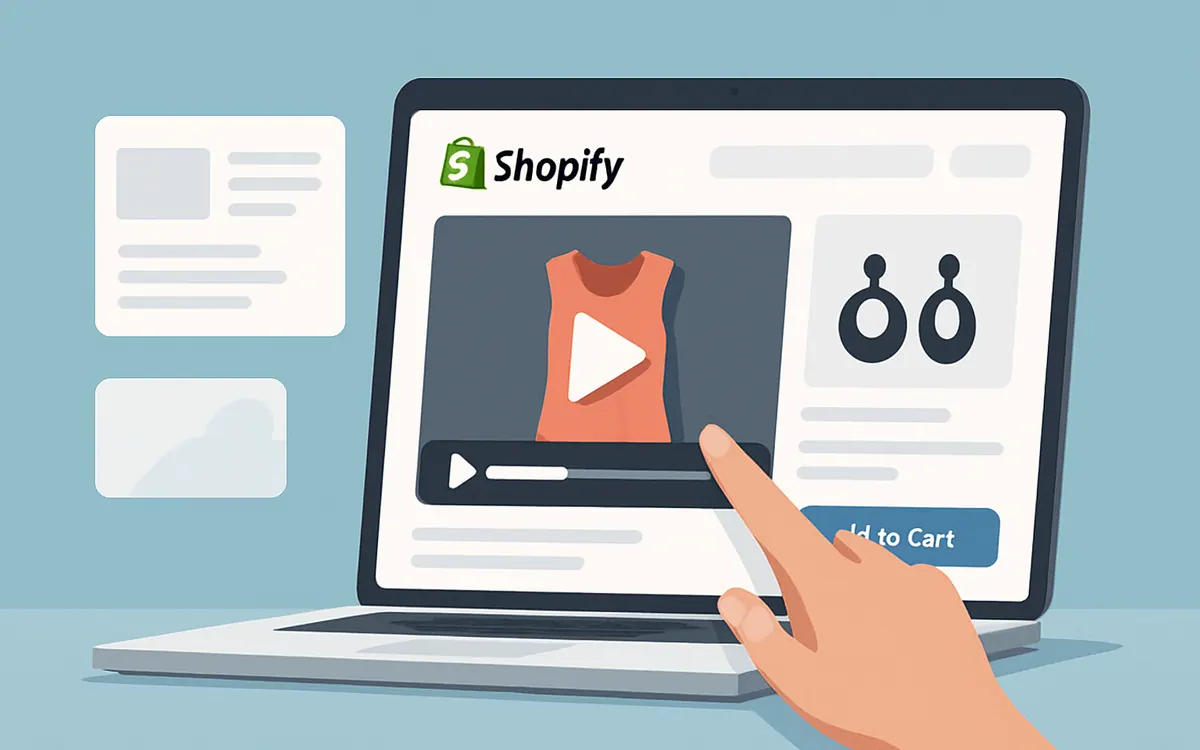
You can add video to a Shopify product page by uploading a video directly to the product media gallery, embedding a YouTube or Vimeo video, inserting video embed code into the product description, or using a Shopify video app to create interactive and shoppable video widgets.
The four main methods are:
- Upload a video directly to Shopify product media.
- Add a YouTube or Vimeo video to the product media gallery.
- Embed a video inside the product description.
- Add an interactive shoppable-video app block.
For most stores, a native Shopify upload is the simplest option.
A shoppable-video app is more appropriate when you want shoppers to select products, view product details, or add items to cart while watching.
Quick Comparison
| Method | Best for | Coding required | Interactive shopping | Main limitation |
|---|---|---|---|---|
| Native Shopify video upload | Product demonstrations | No | No | Standard video playback only |
| YouTube or Vimeo product media | Existing hosted videos | No | No | External platform branding and controls |
| Video in product description | Tutorials and detailed explanations | No, but embed code is required | No | Placement depends on description layout |
| Shoppable-video app | UGC, Reels, multiple products, direct add-to-cart | Usually no | Yes | Requires an app |
Do not choose based only on convenience.
Choose based on the job the video needs to perform.
- If the customer needs to understand one product, use native product media.
- If you already host the video publicly, use YouTube or Vimeo.
- If the video supports a detailed explanation, place it inside the description.
- If the video needs to create a buying action, use a shoppable-video widget.
Method 1: Upload a Video Directly to Shopify
Shopify allows merchants to upload video files directly to a product's media gallery.
The video then appears with the product's images and other media.
This method works well for:
- Product demonstrations
- Product rotations
- Setup instructions
- Short tutorials
- Fit videos
- Before-and-after demonstrations
- Unboxing videos
- Close-up product details
Shopify Product Video Requirements
As of July 14, 2026, an uploaded Shopify product video must meet these requirements:
- Maximum length: 10 minutes
- Maximum file size: 1 GB
- Maximum resolution: 4K, or 4096 × 2160 pixels
- Supported upload formats: .mp4, .mov, and .webm
Shopify converts and serves uploaded .mov and .webm videos as MP4 or HLS for customer compatibility.
Shopify can stream videos at different resolutions depending on the customer's device, browser, connection speed, and uploaded source quality.
How to upload a video to Shopify product media
- From Shopify admin, go to Products.
- Select the product you want to edit.
- Find the Media section.
- Click Upload new.
- Select the video file.
- Wait for Shopify to upload and process the video.
- Reorder the product media if necessary.
- Click Save.
- Preview the product page.
You can also drag and drop the file into the Media section or select a previously uploaded file from Shopify's file library.
Uploading from the Shopify mobile app
In the Shopify mobile app:
- Open Products.
- Select the product.
- Tap the + button in the Media section.
- Choose a video from your device or record one with the camera.
- Save the product.
Reorder the product video
You can move the video earlier or later in the product gallery by dragging it inside the Media section.
The first product-media item is the featured media used in several areas of the storefront, including collection pages and other product previews.
For most stores, use a strong product image as the first media item and place the video second or third.
A video may be appropriate as the first item when:
- The product's movement is its main selling point.
- The product is difficult to understand from a still image.
- The video loads quickly and has a clear preview.
- The theme displays the video properly across devices.
Do not make the first media item a slow, confusing video merely because video feels more sophisticated.
When Native Shopify Video Is the Best Choice
Use a native upload when:
- The video belongs to one specific product.
- You want it inside the standard media gallery.
- You do not need product tags or add-to-cart actions inside the video.
- You want to avoid external platform branding.
- Your theme already supports product video.
- The file meets Shopify's upload requirements.
Native product video is usually the simplest solution for a straightforward demonstration.
Native Shopify Video Limitations
Native product media has several limitations.
It is not automatically shoppable
The customer can watch the video, but the video itself does not automatically include:
- Product hotspots
- Interactive product tags
- Product cards
- Variant selectors
- Add-to-cart buttons
- Multiple-product shopping
The customer normally uses the product page's existing buying controls after watching.
Theme support is required
Shopify states that the store theme must support video or 3D product media.
All Online Store 2.0 themes built by Shopify and Shopify's Horizon family of themes currently support product videos, but older or customized themes may require an update or code changes.
Video cannot be assigned as variant media
Shopify currently states that videos and 3D models cannot be used as product variant media.
That means you cannot natively assign:
- One video to a red variant
- Another video to a blue variant
- A separate video to each size
Product images can be associated with variants, but native video does not currently behave the same way.
Product-media limits apply
A Shopify product can contain a maximum of 250 total media items, including images, videos, and 3D models.
Shopify also has plan-specific limits for the total number of uploaded videos and 3D models stored across the store.
Method 2: Add a YouTube or Vimeo Video
Shopify lets you add externally hosted YouTube and Vimeo videos to product media.
This is useful when:
- The video is already hosted publicly.
- You want to avoid uploading another large file.
- Your YouTube channel is part of your content strategy.
- The same video appears across several platforms.
- You need to update the hosted video separately.
How to Add a YouTube or Vimeo Video
- From Shopify admin, go to Products.
- Select the product.
- Find the Media section.
- Click Select existing.
- Choose Add from URL.
- Paste the YouTube or Vimeo URL.
- Add the video.
- Reorder the media if needed.
- Save and preview the product page.
Shopify currently supports YouTube and Vimeo URLs for externally hosted product video. Other external video platforms are not supported through this native product-media method.
YouTube URL Requirements
Use the standard YouTube URL format:
https://youtube.com/watch?v=VIDEO-ID
Shopify currently states that YouTube Shorts URLs using this format are not directly supported:
https://youtube.com/shorts/VIDEO-ID
To use a YouTube Short, change it to the standard watch URL format:
https://youtube.com/watch?v=VIDEO-ID
The video must be public or unlisted. Private or restricted videos cannot be embedded successfully.
Vimeo URL Requirements
Use a direct Vimeo video URL:
https://vimeo.com/VIDEO-ID
The Vimeo video's settings must permit embedding on external websites.
If the video uses a custom Vimeo vanity URL, use the direct numerical video URL instead.
Advantages of YouTube and Vimeo Embeds
- No direct video-file upload is needed.
- Existing videos can be reused.
- Video hosting is managed externally.
- The same video can support both Shopify and external content channels.
- Updating the hosted video settings can be easier.
Disadvantages of External Video Embeds
- You may see YouTube or Vimeo branding.
- The external platform controls parts of the player.
- Privacy or embedding settings can break playback.
- Platform recommendations may distract the shopper.
- The video is not automatically shoppable.
- Tracking may be split across Shopify and the hosting platform.
Use an external embed when the benefits of existing hosting outweigh the loss of control.
Method 3: Embed a Video Inside the Product Description
You can also place a video inside the product description using Shopify's rich text editor.
This method works well for:
- Long tutorials
- Installation walkthroughs
- Size and fit explanations
- Ingredient education
- Technical demonstrations
- Product comparisons
- Care instructions
- Founder explanations
Unlike product media, a description video can appear within the written sales content.
For example:
- Explain the product problem.
- Show the product demonstration.
- Present specifications.
- Answer common objections.
- Show the buying controls.
How to Embed Video in a Shopify Product Description
First, retrieve the embed code from the video platform.
For YouTube:
- Open the video.
- Click Share.
- Select Embed.
- Copy the iframe embed code.
For Vimeo:
- Open the video.
- Click the sharing or embedding option.
- Copy the embed code.
Then in Shopify:
- Go to Products.
- Open the product.
- Place the cursor in the product-description editor.
- Click the Insert video button.
- Paste the embed code.
- Click Insert video.
- Save the product.
- Preview the page on desktop and mobile.
Shopify's rich text editor supports inserting video embed code into product descriptions, collection descriptions, pages, and blog posts.
When Description Embedding Works Best
Use this method when the video's meaning depends on surrounding text.
For example:
Before the video
See how the filter attaches to the Model 400 ventilation system in under two minutes.
Video
Installation demonstration.
After the video
Before ordering, check the model number printed on the side of your current filter housing.
The text explains why the shopper should watch and what to do next.
Description Video Limitations
Placement may vary by theme
The product description may appear:
- Beside the product gallery
- Below the buying controls
- Inside a collapsed accordion
- Inside a tab
- Far down the page
A video embedded in the description inherits that placement.
Mobile sizing may need attention
Some external iframe embed codes use fixed width and height values.
If your theme does not make the embed responsive, the video may:
- Overflow the screen
- Appear too small
- Create horizontal scrolling
- Leave excessive blank space
Test the live product page on real mobile devices.
It is not interactive commerce
The embedded video explains the product, but it does not automatically include product cards or add-to-cart actions.
Method 4: Add a Shoppable-Video Widget
A shoppable-video app connects product video directly with shopping actions.
Depending on the app, shoppers may be able to:
- Tap a product tag
- Open product details
- Select a product
- Choose a variant
- Add an item to cart
- Browse several products featured in one video
- Continue watching without leaving the page
This method is useful for:
- User-generated content
- TikTok videos
- Instagram Reels
- Product demonstrations
- Try-on videos
- Complete-the-look videos
- Routines
- Bundles
- Creator videos
- Multi-product videos
How a Shoppable-Video App Works
The general process is:
- Install the video app.
- Upload or import a video.
- Select the featured Shopify products.
- Add product tags or hotspots.
- Create a video widget.
- Open the Shopify theme editor.
- Add the app block to the product template.
- Select the widget.
- Preview it.
- Publish and track performance.
Shopify app blocks allow compatible apps to place storefront content through the theme editor without directly editing theme code.
Using Hyper Shoppable Videos
Hyper Shoppable Videos currently lets Shopify merchants turn product videos, TikToks, Instagram Reels, and UGC into shoppable-video widgets.
Its current Shopify App Store listing includes:
- Product tags
- Video hotspots
- Add-to-cart actions while watching
- Embedded video widgets
- Video carousels
- Mobile video stories
- Homepage placement
- Product-page placement
- Collection-page placement
- Landing-page placement
- Video-view tracking
- Product-click tracking
- Add-to-cart tracking
Basic Hyper implementation
- Install Hyper Shoppable Videos.
- Upload or import the product video.
- Connect the correct Shopify product.
- Add a product tag or hotspot.
- Create an embedded product-page widget.
- Open Online Store > Themes.
- Duplicate the live theme.
- Click Customize.
- Open the relevant product template.
- Add the Hyper app block.
- Select the video widget.
- Test mobile and desktop behavior.
- Publish the change.
- Monitor views, clicks, and add-to-cart actions.
Interface labels and plan allowances can change, so confirm the latest details inside the app and on its Shopify App Store listing.
Native Product Video vs Shoppable Video
| Requirement | Native Shopify video | Shoppable-video app |
|---|---|---|
| Upload a product demonstration | Yes | Yes |
| Display video in product gallery | Yes | App-dependent |
| Import TikTok or Reels | No | App-dependent |
| Add product tags | No | Yes |
| Add items to cart while watching | No | Yes |
| Feature several products | Limited | Yes |
| Display stories or carousels | Theme-dependent | Common |
| Track video product clicks | Limited | Common |
| Track video add-to-cart actions | Limited | Common |
| Additional monthly cost | No | Possibly |
| Installation complexity | Low | Low to medium |
The decision is simple:
Use native video for product understanding. Use shoppable video when the missing step is product interaction.
Where Should You Place a Product Video?
Video placement should match the customer's current question.
Inside the Product Gallery
Best for:
- Immediate visual proof
- Product demonstrations
- Fit and movement
- Product details
- Unboxing
Place the video early in the gallery when the product is easier to understand in motion.
Below the Product Title or Price
Best for:
- Major demonstrations
- High-consideration purchases
- Products requiring explanation
Use this placement carefully. Do not push the price, variants, or add-to-cart controls too far down the page.
Near the Add-to-Cart Area
Best for:
- Objection handling
- Short proof videos
- Fit videos
- Product-specific UGC
The video should support the buying decision, not compete with the main call to action.
Inside the Product Description
Best for:
- Tutorials
- Technical information
- Installation
- Product comparisons
- Care instructions
Below the Product Details
Best for:
- Customer stories
- Creator videos
- Additional tutorials
- Cross-selling videos
- Complete-the-look widgets
What Type of Video Should You Add?
Choose the video according to the customer's objection.
| Customer concern | Recommended video |
|---|---|
| "How does it work?" | Product demonstration |
| "What size should I buy?" | Fit or sizing video |
| "What will I receive?" | Unboxing |
| "Can I install it?" | Installation tutorial |
| "Does it work in real life?" | Customer or creator video |
| "Which version should I choose?" | Comparison video |
| "How does it look?" | Lifestyle or try-on video |
| "What else do I need?" | Bundle or routine video |
Do not publish a video merely because you have one.
Every product video should answer a buying question or create a useful shopping action.
Product Video Best Practices
Keep the Opening Clear
Show the product or result immediately.
A shopper should understand the subject within the first two or three seconds.
Do not begin a 20-second product video with:
- A long logo animation
- A generic lifestyle scene
- An extended introduction
- Empty packaging
- Irrelevant footage
Keep Most Product Videos Focused
A product-page video does not need to be ten minutes simply because Shopify permits ten-minute uploads.
A practical structure is:
Problem → Demonstration → Result → Action
Example:
- Problem: Shoes become soaked during trail runs.
- Demonstration: Water is poured over the shoe.
- Result: The interior remains dry.
- Action: Choose your size.
Make the Video Understandable Without Sound
Use:
- Captions
- On-screen labels
- Product callouts
- Step numbers
- Clear visual demonstrations
Many shoppers browse with audio turned off.
Avoid Aggressive Autoplay
Shopify's product-media UX guidance recommends that video content default to paused because unexpected playback can be distracting. When video plays automatically, Shopify recommends that it be muted.
Autoplay should not:
- Start with sound
- Restart repeatedly
- Play several videos at once
- Interfere with navigation
- Block product information
- Consume unnecessary mobile data
Provide Clear Video Controls
The shopper should be able to:
- Play
- Pause
- Adjust volume
- Enter fullscreen
- Exit fullscreen
- Navigate away using a keyboard
Shopify recommends clearly recognizable play controls and visible focus states for keyboard users.
Use a Strong Preview Image
The preview should communicate:
- What product is shown
- What the video demonstrates
- Why the shopper should play it
Avoid a random frame showing:
- A blurred hand
- A blank background
- A half-open transition
- A creator with the product out of frame
Test Page Performance
Video can increase page weight and processing.
Test:
- Mobile loading
- Video start time
- Layout movement
- Theme responsiveness
- Product-gallery interaction
- Add-to-cart speed
- Third-party script behavior
Do not judge performance only on a high-speed office connection.
Common Shopify Product Video Problems
The Video Does Not Display
Possible causes include:
- The theme does not support product video.
- The theme needs an update.
- The external video is private.
- Vimeo embedding is restricted.
- The YouTube URL format is unsupported.
- Custom theme code does not render video media.
- An app or page builder replaced the product gallery.
Fix
Test the product using an updated Shopify-built theme.
If the video works there, the issue is likely the current theme or customization.
The YouTube Short Does Not Work
Shopify currently does not support YouTube Shorts URLs directly through native product media.
Change:
https://youtube.com/shorts/VIDEO-ID
To:
https://youtube.com/watch?v=VIDEO-ID
Then add the standard URL again.
The Video Is Too Large
Confirm that the file is:
- No longer than 10 minutes
- No larger than 1 GB
- No higher than 4K
- .mp4, .mov, or .webm
Compress the video before uploading when necessary.
Do not export every product video at the maximum possible resolution.
The Video Works on Desktop but Not Mobile
Check:
- Theme version
- Mobile product gallery
- Fixed iframe widths
- App-widget responsiveness
- Browser compatibility
- Mobile data behavior
- Overlapping sticky elements
The Video Autoplays With Sound
Disable sound by default or disable autoplay.
Unexpected audio creates friction and may violate the intended UX of the theme.
The Video Gets Views but No Product Actions
Diagnose the customer journey.
High views, low product clicks
Possible problem:
- The video is entertaining but not commercially relevant.
- The product is unclear.
- The shopping control is hidden.
- The wrong product is tagged.
High product clicks, low add-to-cart rate
Possible problem:
- Price
- Variants
- Product-page clarity
- Inventory
- Shipping
- Product-market fit
High carts, low purchases
Possible problem:
- Checkout
- Shipping cost
- Delivery time
- Payment methods
- Trust
- Discount-code friction
Fix the constraint. Do not assume the video is failing because purchases did not increase.
How to Measure Product Video Performance
Track:
- Product-page visits
- Video plays
- Video completion rate
- Product clicks
- Add-to-cart actions
- Checkout starts
- Purchases
- Gross profit
Video play rate
Video play rate = Video plays ÷ Product-page visits × 100
Example:
- Product-page visits: 5,000
- Video plays: 1,000
1,000 ÷ 5,000 × 100 = 20%
Video-to-cart rate
Video-to-cart rate = Video-attributed add-to-cart actions ÷ Video views × 100
Example:
- Video views: 1,000
- Add-to-cart actions: 45
45 ÷ 1,000 × 100 = 4.5%
Break-even calculation
Suppose a shoppable-video app costs $29 per month and each resulting order produces $18 in gross profit.
$29 ÷ $18 = 1.61
The app needs to create approximately two additional monthly orders to cover the software fee.
That does not include video-production costs, staff time, refunds, or other expenses.
Measure gross profit, not just attributed revenue.
Frequently Asked Questions
How do I add a video to a Shopify product page?
Open the product in Shopify admin, find the Media section, and upload a supported video file or add a YouTube or Vimeo URL. You can also embed video in the product description or use a video app.
What video formats does Shopify support?
Shopify currently accepts .mp4, .mov, and .webm product-video uploads.
What is the maximum Shopify product video size?
An individual uploaded product video can be up to 1 GB.
How long can a Shopify product video be?
Shopify currently allows uploaded product videos up to 10 minutes long.
Can I add a YouTube video to Shopify?
Yes. Add the standard YouTube watch URL through the product's Media section. The video must be public or unlisted.
Can I add a YouTube Short to Shopify?
Not using the Shorts URL directly. Convert the URL to the standard YouTube watch format before adding it.
Can I add Vimeo videos to Shopify?
Yes. Use a direct Vimeo video URL and make sure the video's privacy settings permit external embedding.
Can I add video to the Shopify product description?
Yes. Copy the video's embed code and paste it using the rich text editor's Insert video tool.
Can Shopify product videos autoplay?
Autoplay behavior depends on the theme or app. Shopify recommends that video default to paused. If it plays automatically, it should be muted.
Can I assign a different video to each Shopify variant?
Shopify currently states that videos cannot be used as native product-variant media.
Can shoppers add products to cart from a Shopify video?
Not from standard native product media. A shoppable-video app or custom implementation is needed to add interactive product tags and cart actions inside the video.
Is it better to upload video directly or use YouTube?
Upload directly when you want more control and less platform branding. Use YouTube or Vimeo when the video is already hosted there and external hosting fits your strategy.
Do I need a Shopify video app?
Not for a basic product video. An app becomes useful when you need product tags, add-to-cart actions, video carousels, social-video imports, UGC widgets, or video-specific analytics.
Final Checklist
Before adding video to a Shopify product page:
- Decide what customer question the video will answer.
- Choose native, external, description, or shoppable video.
- Confirm the file meets Shopify's requirements.
- Make the external video public or embeddable.
- Confirm your theme supports product video.
- Use a clear preview frame.
- Keep the opening focused.
- Add captions or on-screen context.
- Avoid autoplay with sound.
- Test the page on mobile and desktop.
- Test product variants and inventory.
- Check page loading and gallery behavior.
- Track plays, clicks, carts, purchases, and gross profit.
- Use a shoppable-video app only when interaction is the missing step.
The objective is not to put video on the product page.
The objective is to help the shopper understand the product, trust the product, and take the next buying action with less effort.
Explore Hyper Shoppable Videos on the Shopify App Store.