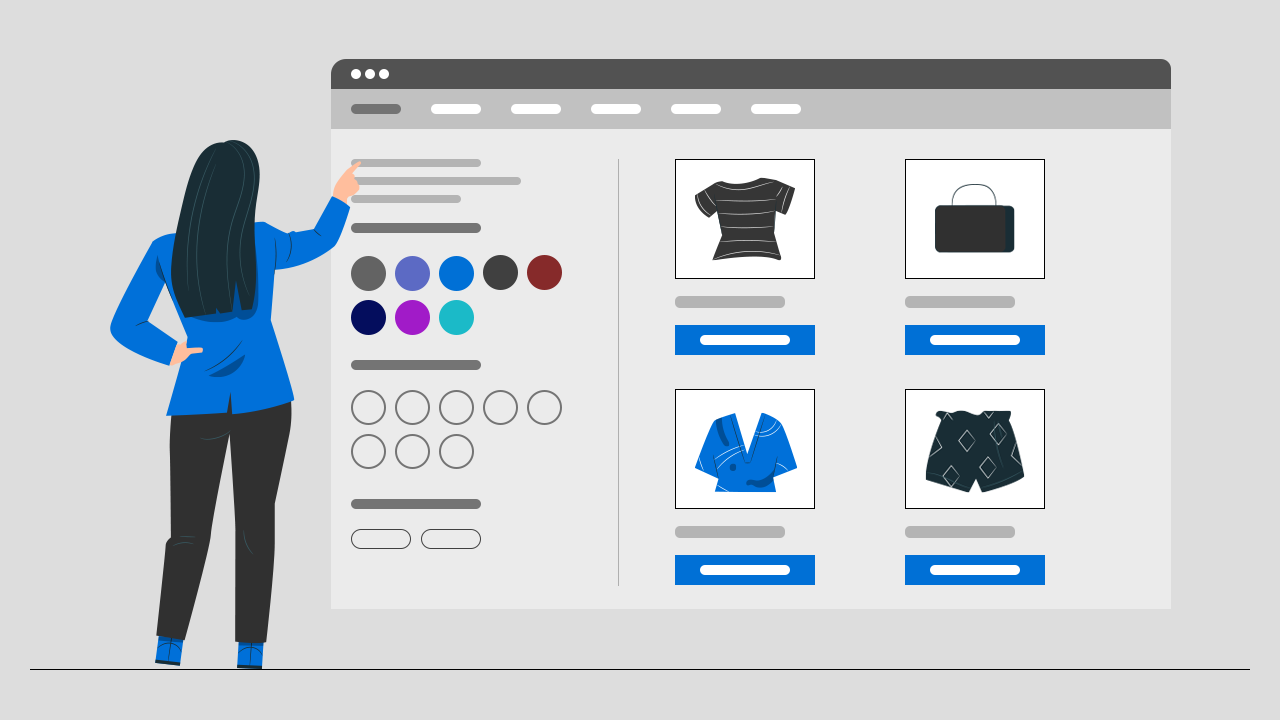
Shopify product filters help shoppers narrow a collection by criteria such as availability, price, product type, vendor, size, color, and custom product attributes. You can add basic filters with Shopify Search & Discovery or use a third-party search and filter app when you need more customization, analytics, or support for a larger catalog.
This guide explains how to add product filters to Shopify, create custom filters with metafields, troubleshoot filters that are not showing, and decide whether Shopify's native filtering tools are enough for your store.
What Are Shopify Product Filters?
Shopify product filters are controls that help customers reduce a large collection or search result to a smaller, more relevant group of products.
For example, a customer browsing a shoe collection might filter products by:
- Size
- Color
- Price
- Brand
- Product type
- Availability
- Material
- Style
Instead of opening dozens of product pages, the shopper can quickly remove products that do not meet their requirements.
Shopify supports storefront filters on compatible collection and search-result pages. Native filters can use product information such as availability, category, price, tags, product type, vendor, variant options, and metafields.
How to Add Product Filters to Shopify
The basic process is:
- Check whether your Shopify theme supports storefront filtering.
- Install or open Shopify Search & Discovery.
- Add standard or custom filter sources.
- Enable filtering in your theme editor.
- Test the filters on desktop and mobile.
Here is how to complete each step.
Step 1: Check Whether Your Theme Supports Filters
Before creating filters, confirm that your published theme can display them.
In your Shopify admin:
- Go to Content.
- Select Menus.
- Find the Collection and search filters section.
- Check for a message about theme compatibility.
You can create filters even when a theme does not support them, but customers will not see those filters until the theme is updated or customized.
Shopify-developed themes generally include filtering controls in the Product grid section of collection templates and the Search results section of the search template. Some third-party themes may use different settings or require additional development.
Step 2: Open Shopify Search & Discovery
Shopify Search & Discovery is Shopify's first-party app for managing native search, filters, and product recommendations.
After installing the app:
- Go to Apps in your Shopify admin.
- Open Search & Discovery.
- Select Filters.
- Click Add filter.
You will then see the filter sources available from your store's product data.
Step 3: Add Standard Shopify Filters
Standard filters are available to all eligible Shopify stores.
They include:
| Standard filter | What customers can filter |
|---|---|
| Availability | In-stock or unavailable products |
| Category | Shopify product categories |
| Price | Products within a selected price range |
| Product type | Types such as shirts, shoes, or accessories |
| Tags | Product tags assigned in Shopify |
| Vendor | Product brand, supplier, or vendor |
To add one:
- Click Add filter.
- Open the Source field.
- Select the standard filter.
- Rename its customer-facing label if required.
- Adjust its behavior, display, grouping, or sorting.
- Click Save.
Shopify currently allows a combination of up to 25 standard and custom filters in the native Search & Discovery configuration.
Do not add every filter simply because it is available. Add filters that reflect how customers actually compare products.
A fashion store may need size, color, material, style, and price. A furniture store may need dimensions, room, material, color, and availability. A small store selling ten nearly identical products may need only two or three filters.
Step 4: Create Product Option Filters
Product option filters use the variant options already assigned to products.
For example, products may have options such as:
- Size
- Color
- Finish
- Pack size
- Material
If clothing products use a consistent Size option with values such as Small, Medium, and Large, Shopify can use that option as a collection filter.
To create a product option filter:
- Make sure the option is consistently configured across relevant products.
- Open Search & Discovery.
- Select Filters.
- Click Add filter.
- Select the product option as the source.
- Configure and save the filter.
Consistency matters. Avoid using Color on some products, Colour on others, and Shade on another group unless those differences are intentional.
Inconsistent naming can divide values across different filter sources or cause expected options to appear missing.
Step 5: Create Custom Filters With Metafields
Metafields let you create filters using structured information that is not stored in Shopify's standard product fields.
Useful metafield filters include:
- Skin type
- Compatibility
- Water resistance
- Technical specification
- Ingredient
- Room type
- Sustainability certification
- Product condition
- Gender
- Intended use
Suppose you sell skincare products and want customers to filter by skin concern.
You could create a product metafield called Skin concern and assign values such as:
- Dryness
- Acne
- Redness
- Fine lines
- Uneven tone
Create the metafield definition
- Go to Settings in Shopify.
- Select Custom data.
- Select Products.
- Click Add definition.
- Enter the metafield name.
- Choose a supported data type.
- Save the definition.
Shopify supports storefront filtering for several metafield types, including single-line text, lists of single-line text, decimal numbers, integers, true-or-false fields, and supported metaobject references.
Add values to your products
After creating the definition:
- Open each relevant product.
- Find the metafield section.
- Add the correct value.
- Save the product.
Use Shopify's bulk editor when you need to assign values across many products.
Add the metafield as a filter
Once your products contain values:
- Open Search & Discovery.
- Go to Filters.
- Click Add filter.
- Select the metafield definition.
- Configure the filter label and behavior.
- Save it.
The filter will only be useful when enough relevant products have accurate values. An empty metafield definition does not create a useful customer experience.
Step 6: Group Similar Filter Values
Large or inconsistent catalogs often contain multiple values that mean nearly the same thing.
For example:
- Black
- Jet black
- Midnight
- Onyx
- Charcoal black
Showing each as a separate value creates unnecessary effort for the shopper.
Shopify lets merchants group related values under one customer-facing value. In this example, the different shades could be grouped under Black.
To group values:
- Open the filter in Search & Discovery.
- Select the values you want to combine.
- Click Create group.
- Enter the group name.
- Save the filter.
Grouping makes the filter shorter and easier to scan while preserving the original product data.
Shopify allows up to 200 unique values within an individual filter group and up to 1,000 groups across selected filter settings.
Step 7: Sort and Rename Filter Values
The default filter name may reflect an internal product field rather than the language customers use.
Examples:
- Rename Vendor to Brand.
- Rename Product type to Shop by product.
- Rename Variant option: Finish to Choose a finish.
- Rename Price to Price range.
Changing the customer-facing label does not change the underlying product information.
You can also sort values automatically or manually. Manual sorting is useful when the commercially important order is not alphabetical.
For example, a clothing store may display sizes as:
XS, S, M, L, XL, XXL
A technical store may want to place the most commonly purchased specifications first.
Step 8: Display Filters in Your Shopify Theme
Creating a filter in Search & Discovery does not always activate its storefront display.
To enable it:
- Go to Online Store.
- Select Themes.
- Click Customize on the published theme.
- Open a collection page template.
- Select the Product grid or equivalent section.
- Enable filtering.
- Choose the available layout, such as a sidebar or filter drawer.
- Save your changes.
Repeat the process for your search-results template when necessary.
Test the storefront after saving. Shopify applies selected filters to the collection or search-results URL using parameters, allowing the page to display the matching product set.
Best Shopify Filters by Store Type
The right filters depend on the product catalog and customer decision process.
| Store type | Recommended filters |
|---|---|
| Fashion | Size, color, fit, material, style, price, availability |
| Beauty | Skin type, concern, ingredient, product type, brand, price |
| Electronics | Brand, compatibility, specification, storage, condition, price |
| Furniture | Room, material, color, dimensions, style, availability |
| Jewelry | Material, stone, color, size, collection, price |
| Automotive parts | Make, model, year, part type, compatibility |
| Food and beverage | Flavor, dietary requirement, pack size, ingredients |
| B2B supplies | Brand, specification, availability, case size, price |
Start with the three to seven filters that remove the most irrelevant products. Add more only when they make the buying process easier.
Shopify Product Filters Not Showing: Common Causes
A filter can exist in the Shopify admin without appearing on the storefront.
Here are the most common reasons.
1. The theme does not support storefront filtering
Check theme compatibility and theme-section settings.
A third-party theme may need an update, developer customization, or a compatible filtering app.
2. Filtering is disabled in the theme editor
Open the collection template and make sure filtering is enabled in the relevant product-grid section.
3. Products do not contain the required data
A Size filter cannot display useful values when products do not have a consistent size option or metafield.
Check the products assigned to the affected collection.
4. The filter does not apply to the current collection
Shopify displays only filters and values relevant to products in the current collection or search result.
A material filter may appear in a furniture collection but not in a gift-card collection.
5. The collection is too large for native filters
Shopify states that native filters do not display on collections containing more than 5,000 products. Filters are also hidden when a search produces more than 100,000 results.
For a large catalog, possible fixes include:
- Dividing one broad collection into smaller collections
- Improving collection architecture
- Using a third-party search and filtering solution designed for larger catalogs
6. The filter contains too many values
A native storefront filter can display a maximum of 100 values. When a filter has more possible values, some may not appear to customers.
Group similar values, remove unnecessary options, or replace an uncontrolled tag filter with a structured metafield filter.
7. Product option names are inconsistent
Check for differences such as:
- Color versus Colour
- Size versus Sizes
- Material versus Fabric
- Extra spaces or punctuation
Standardize the names and values used across related products.
8. Changes have not propagated or the storefront is cached
Save the product, app, and theme settings again. Then test the storefront in a private browser window and on another device.
Native Shopify Filters vs a Search and Filter App
Shopify Search & Discovery works well when you have a compatible theme, a manageable catalog, and straightforward filtering requirements.
A dedicated app becomes more useful when product discovery is a measurable constraint.
| Requirement | Native Shopify filtering | Advanced app |
|---|---|---|
| Basic availability and price filters | Yes | Yes |
| Product option and metafield filters | Yes | Yes |
| Simple setup | Yes | Usually |
| Instant predictive search | Theme-dependent | Common |
| Typo-tolerant search | Limited by setup | Often included |
| Search-query analytics | Basic capabilities | Often more detailed |
| Filter-usage analytics | Limited | Often included |
| Zero-result search reporting | Limited | Often included |
| Large-catalog support | Native limits apply | Depends on app and plan |
| Custom filter trees | Limited | Often available |
| Advanced storefront styling | Theme-dependent | Usually more flexible |
Do not install another app because a table says it has more features. Install it when those features solve a real constraint.
For example, an advanced app may be justified when:
- Customers search for products using misspellings.
- Your team cannot see which searches return zero products.
- A large catalog makes products difficult to discover.
- You need different filter structures for different collections.
- Merchants need stronger control over search-result ranking.
- Native filters are not displaying because of catalog limits.
- You want to measure which filters shoppers actually use.
Using Hyper Search & Filter for Advanced Product Discovery
Hyper Search & Filter is built for Shopify merchants who need more than a basic collection sidebar.
It can add:
- Instant AI search suggestions
- Typo-tolerant results
- Filters based on collections, vendors, variants, sizes, colors, and metafields
- Search-query and filter-usage analytics
- Zero-result search reporting on eligible plans
- Real-time product synchronization
- Custom search and filter styling
These capabilities can help a merchant identify what shoppers are trying to find rather than guessing from pageviews alone.
For example, suppose shoppers repeatedly search for waterproof backpack, but your products use the phrase water-resistant travel bag.
A search report exposes the language gap. You can then:
- Add an appropriate synonym.
- Improve relevant product titles or descriptions.
- Create a waterproofing metafield.
- Add a waterproof filter.
- Review whether the search begins producing product clicks.
That is the real value of search analytics: it turns customer language into merchandising decisions.
Product Filter Best Practices
Use customer language
Name filters using the words shoppers understand.
Use Brand instead of Vendor when customers are comparing consumer brands. Use Device compatibility instead of an internal field such as Accessory model reference.
Prioritize high-impact filters
Put the filters used most frequently near the top.
For many stores, this means:
- Product type
- Size or compatibility
- Color or style
- Availability
- Price
Your order may differ. Use behavioral data rather than assumptions when analytics are available.
Keep mobile filtering easy to use
On mobile, filters are commonly displayed inside a drawer.
Test:
- Whether the filter button is easy to find
- Whether selected filters remain visible
- Whether values are easy to tap
- Whether shoppers can clear all selections
- Whether the product count updates clearly
- Whether closing the drawer preserves the selection
Hide or deprioritize empty values
Customers do not benefit from selecting a value that produces no products.
Depending on your setup, hide empty filter values or move them to the bottom.
Do not create a filter for every product field
More filters do not automatically create a better experience.
Twenty irrelevant filters increase effort. Five well-chosen filters can reduce it.
Each filter should answer a real customer question, such as:
- Will this fit?
- Is it compatible?
- Is it in stock?
- Does it have the feature I need?
- Is it within my budget?
Test combinations, not only individual filters
Shopify normally treats values from different filters as an AND condition.
A shopper selecting Black and Size 8 should see products that satisfy both requirements. Multiple values within the same filter commonly use OR logic, such as Black or Blue.
Test common combinations to make sure the results are useful.
How to Measure Whether Product Filters Are Working
Do not measure filtering success only by whether the widget appears.
Track the customer journey:
- Collection visits
- Filter interactions
- Product clicks after filtering
- Searches with results
- Searches with zero results
- Add-to-cart rate
- Conversion rate
- Revenue from search and filter users
A practical diagnostic model is:
- High filter use, low product clicks: Results may still be irrelevant.
- High product clicks, low add-to-cart rate: Product pages, price, or product fit may be the constraint.
- Frequent zero-result searches: Catalog language, synonyms, or inventory may not match customer demand.
- Low filter use on a large catalog: Filters may be hidden, confusing, poorly ordered, or unnecessary.
- Strong search engagement but low purchases: Search may be working while another funnel step is failing.
Improve the step with the largest meaningful drop-off first.
Advanced Filtering Techniques
Using Filter Values for Enhanced Discovery
Utilizing specific filter values is paramount for enhanced product discovery, especially when searching for products that match specific criteria. within your Shopify store, enhancing the overall user experience with effective filters in the Shopify. By meticulously defining and organizing filter values, you enable customers to refine their search with unparalleled precision. This means going beyond broad categories and offering granular selections, allowing shoppers to home in on exactly what they're looking for, leading to a significantly improved user experience and more successful conversions on your collection pages.
Creating Collection Filters for Better Organization
Creating comprehensive collection filters is essential for better organization and navigation within your online store. These filters allow you to segment your products effectively, making it easier for customers to browse specific categories without being overwhelmed. By implementing robust collection filters, you provide a structured shopping environment that guides customers through your product offerings efficiently, enhancing their ability to find relevant items and improving overall product filtering in Shopify.
Implementing Basic Filters for Quick Setup
Implementing basic filters offers a quick and effective way to enhance the initial product filtering in Shopify, especially for stores just starting out. While not as granular as custom filters leveraging metafields, basic filters like product type, price, and vendor can still significantly improve the customer experience by providing immediate navigational tools. This allows customers to quickly narrow down search results, offering a foundational level of product discovery on collection pages before diving into more advanced filter options.
Optimizing Shop for Better Search Experience
Utilizing Shopify Search for Increased Visibility
To optimize your shop for a better search experience, effectively utilizing Shopify's own search functionality is crucial for increased product visibility. While native Shopify search provides a baseline, integrating a powerful discovery app like Hyper Search Product Filters can significantly amplify its capabilities and improve the search bar functionality. This allows you to create custom filters that go beyond basic product attributes, ensuring customers find exactly what they're looking for by leveraging detailed product metafields, thereby boosting the relevance of search results.
Best Practices for Product Filtering in Shopify
Adhering to best practices for product filtering in Shopify, as outlined in the Shopify Help Center, is vital for a seamless customer experience and maximizing conversions. This includes ensuring your filter labels are intuitive, organizing filter options logically, and utilizing product metafields to create custom filters that reflect unique product attributes. By following these guidelines, you empower customers to efficiently filter your products, significantly improving product discovery on collection and search pages and making it easier for them to find exactly what they're looking for.
Common Mistakes to Avoid When Adding Filters
When adding filters, it's crucial to avoid common mistakes that can hinder the user experience. One frequent error is creating too many filter options that overwhelm customers, or conversely, too few, making product discovery difficult. Another mistake is failing to consistently update product metafields, leading to inaccurate filter values. To truly enhance product filtering in Shopify, ensure filter labels are clear, relevant, and regularly maintained within the Shopify admin, helping customers find precisely what they're looking for.
Why traditional filters fail at scale
Basic filters work fine for small stores. But once your catalog grows into hundreds or thousands of products, problems appear:
- Too many filter options overwhelm users
- Static filters don't adapt to user intent
- Poor product tagging leads to inconsistent results
- Customers struggle to narrow down choices
The result? Shoppers get stuck. And stuck shoppers don't convert.
Why large catalogs need AI filters
The bigger your catalog, the harder product discovery becomes.
1. Too many choices create friction
Large catalogs introduce decision fatigue. AI filters reduce this by:
- Highlighting the most relevant options
- Removing irrelevant filter combinations
- Guiding users toward better choices
2. Product data is rarely perfect
Even well-managed stores have inconsistencies. AI helps by:
- Interpreting imperfect data
- Filling gaps in tagging
- Improving matching accuracy
3. User intent varies widely
Different customers search differently. AI filters adapt by:
- Understanding intent behind queries
- Adjusting results dynamically
- Personalizing the experience
4. Static filters don't scale
Manual filter setups become unmanageable. AI automates:
- Filter prioritization
- Attribute weighting
- Result ordering
How AI-powered filters improve conversions
Better filtering leads to better outcomes. Here's how:
Faster product discovery
Customers find what they want quicker. Less friction = higher conversion rates.
Higher relevance
AI ensures:
- More accurate results
- Better product matches
- Fewer dead ends
Improved engagement
Shoppers:
- Browse more products
- Spend more time on site
- Interact with filters more effectively
Increased average order value
When discovery improves:
- Customers find complementary products
- Upsell opportunities increase
Common use cases for AI filters
AI-powered filters are especially valuable for:
- Apparel stores with size, color, and style variations
- Electronics stores with technical specifications
- Beauty stores with ingredient and skin-type filters
- Home goods stores with multiple attributes
Any store with complex product attributes benefits.
The business impact of AI-powered filters
Investing in AI filters leads to:
- Higher conversion rates
- Reduced bounce rates
- Better customer satisfaction
- Increased revenue
For large catalogs, this isn't optional. It's a competitive advantage.
Frequently Asked Questions
How do I add product filters to Shopify?
Install or open Shopify Search & Discovery, go to Filters, select Add filter, choose a standard filter, product option, or metafield source, and save it. Then enable filtering in the product-grid section of your collection template.
Can I add size and color filters to Shopify?
Yes. Size and color can be created from consistent product variant options, category attributes, or custom metafields. The products in the collection must contain relevant values.
Can I create custom Shopify filters?
Yes. Create a supported product or variant metafield, assign values to your products, and then add that metafield as a filter in Shopify Search & Discovery.
Why are my Shopify filters not showing?
Common causes include an incompatible theme, disabled theme settings, missing product data, inconsistent option names, a filter that does not apply to the current collection, or Shopify's native collection and value limits.
How many product filters can I add in Shopify?
Shopify's native Search & Discovery configuration currently supports a combination of up to 25 standard and custom filters. Individual storefront filters can display up to 100 values.
Do Shopify filters work on collection pages?
Yes. Compatible themes can display storefront filters on collection pages and search-results pages.
Do I need an app to add filters to Shopify?
Not always. Shopify Search & Discovery can handle many basic requirements. A third-party app is more useful when you need advanced search, typo tolerance, larger-catalog support, different filter trees, deeper analytics, or more storefront customization.
What is the difference between Shopify search and product filters?
Search lets shoppers enter a word or phrase to find products. Filters let them narrow an existing collection or result set using structured attributes such as size, color, price, vendor, or availability. The two systems work best together.
What are AI-powered product filters?
They use machine learning to dynamically adjust filtering options and improve product relevance based on user behavior and intent.
Why are AI filters important for large catalogs?
They help manage complexity, reduce friction, and improve product discovery when traditional filters become overwhelming.
Do AI filters improve conversion rates?
Yes. Better filtering leads to faster discovery, higher relevance, and increased likelihood of purchase.
Can Shopify stores use AI product filters?
Yes. Apps like Hyper Search & Filter and Boost AI Search & Filter provide AI-powered filtering capabilities.
Do I need perfect product data for AI filters?
No, but cleaner and more consistent data improves performance significantly.
Are AI filters worth the investment?
For stores with large or complex catalogs, they can significantly increase revenue and improve user experience.
Final Checklist
Before publishing your filters, confirm that:
- Your theme supports storefront filtering.
- Filtering is enabled on collection and search templates.
- Product options use consistent names.
- Custom metafields contain accurate values.
- The most useful filters appear first.
- Similar values have been grouped.
- Empty values are hidden or deprioritized.
- Filters work on mobile devices.
- Common filter combinations return relevant products.
- Search and filter performance is being measured.
Basic filters are easy to install. Useful product discovery requires more work.
Start with Shopify's native tools when they satisfy the customer journey. Move to an advanced solution when search relevance, catalog size, analytics, customization, or zero-result queries become the constraint.
Explore Hyper Search & Filter on the Shopify App Store.
Sources
- Shopify Help Center: Adding filters with Shopify Search & Discovery
- Shopify Help Center: Add storefront filtering
- Shopify Developer Documentation: Storefront filtering
- Hyper Search & Filter on the Shopify App Store
More on Shopify filtering
Filtering has more edge cases than the setup itself suggests. These go deeper:
- filters not showing — eight causes and a ten-minute diagnostic.
- filters for large catalogues — what changes past a few thousand products.
- optimising filters at scale — tuning facets once the catalogue grows.
- organising products by category — the taxonomy work filters depend on.
- search and filters during peak sales — preparing discovery for high-traffic periods.