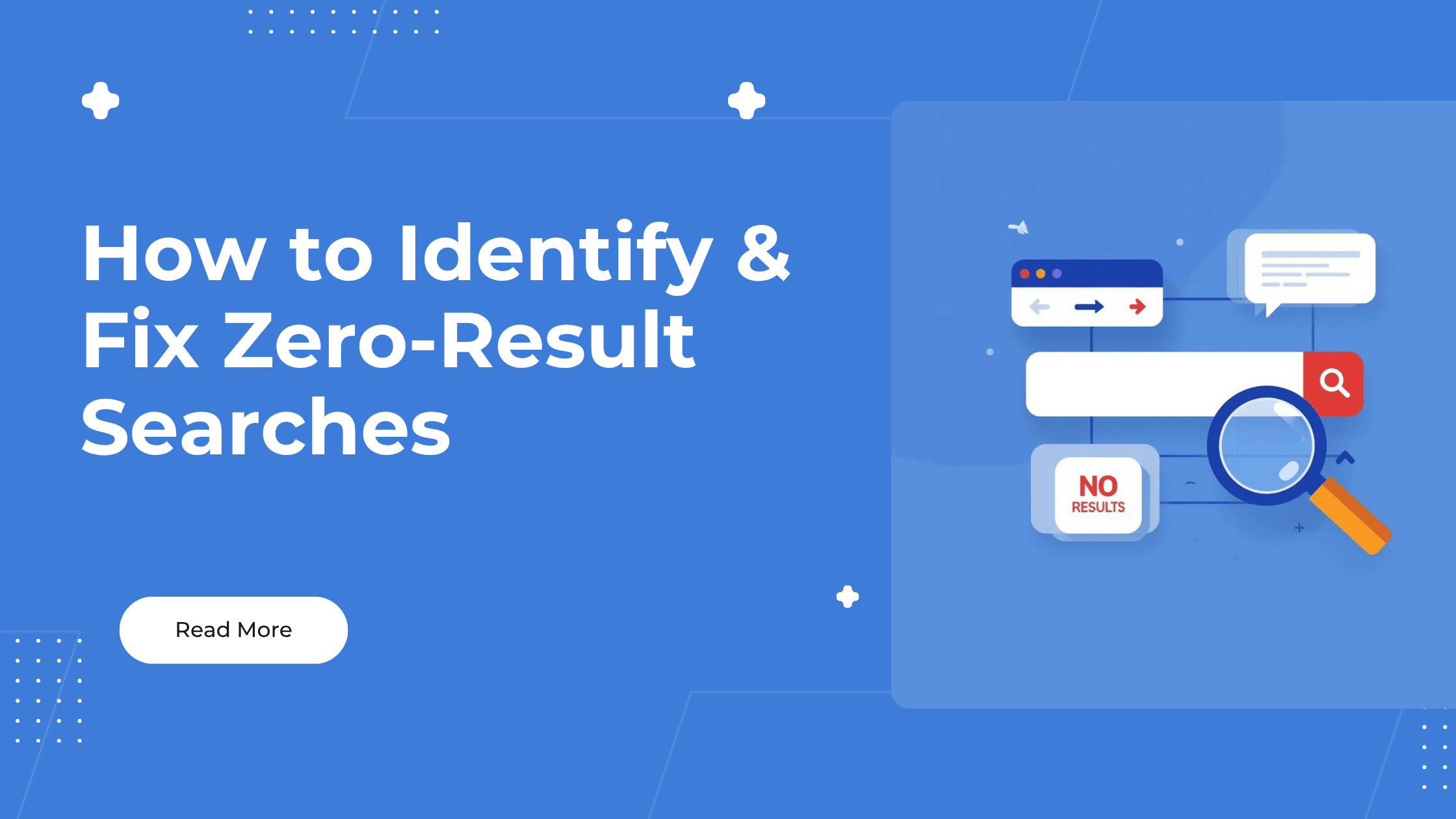
A zero-result search happens when a shopper enters a query into your Shopify store search but receives no matching products or content.
To fix zero-result searches on Shopify, review the Searches with no results report, identify why each important query failed, and apply the appropriate solution. That may include adding synonyms, improving product titles and tags, correcting product visibility, creating relevant products, or upgrading the store's search system.
Do not treat every failed search as a spelling problem.
A zero-result query can indicate one of several issues:
- The shopper uses different language than your catalog.
- The product exists but is not searchable.
- The product is unavailable or hidden.
- The query is too specific.
- Your store does not carry the requested product.
- The theme or search app is not using Shopify's expected search settings.
- The search system cannot interpret the shopper's intent.
The goal is not to force every query to return something.
The goal is to return something relevant when the store can reasonably satisfy the shopper's intent.
What Is a Zero-Result Search?
A zero-result search is an onsite search query that does not return any matching results.
For example, a shopper may search for:
- navy waterproof jacket
- phone cover for iphone 16
- vegan face moisturizer
- size 12 running shoes
- replacement filter model 400
- gift under $50
If Shopify cannot connect the query with searchable product information, the shopper may land on an empty search-results page.
Shopify provides a Searches with no results report that shows the search terms customers used and the number of sessions in which each term produced no results.
This report can expose:
- Customer vocabulary
- Missed product demand
- Catalog-data problems
- Search relevance problems
- Inventory gaps
- Navigation problems
- Product naming mismatches
A failed search is not just a technical error. It is direct customer feedback.
Why Zero-Result Searches Matter
Shoppers who use onsite search are telling you what they want.
They are not passively browsing a homepage. They are taking a specific action with an expected result.
When the store returns nothing, the buying journey stops.
The immediate problem is obvious: the shopper cannot find a relevant product.
The larger problem is that merchants often do not know whether the product was unavailable, hidden, badly described, or simply named differently.
For example, imagine that your store sells products titled sling bags, but customers repeatedly search for belt bags.
You may have the correct inventory. The search fails because the customer's language and the catalog's language do not match.
Shopify specifically uses this example when explaining synonym groups. A synonym group can tell Shopify to treat sling and belt bag as equivalent search terms.
That is a vocabulary problem, not an inventory problem.
Where to Find Zero-Result Searches in Shopify
You can review failed searches from Shopify Search & Discovery or Shopify Analytics.
Option 1: Shopify Search & Discovery
- From Shopify admin, go to Apps.
- Open Search & Discovery.
- Review the search-performance reports.
- Open Searches with no results.
The Search & Discovery dashboard currently includes reports for:
- Click rate
- Purchase rate
- Searches by search query
- Searches with no results
- Searches with no clicks
The metrics displayed inside Search & Discovery cover the most recent 30 days. Shopify directs merchants to the complete reports under Analytics > Reports when another date range is required.
Option 2: Shopify Analytics
- From Shopify admin, go to Analytics.
- Select Reports.
- Filter the report category by Behavior.
- Open Searches with no results.
The report displays:
- The search term
- The number of sessions in which customers used the term
Shopify notes that search reports can have a reporting delay of up to 72 hours.
Do not assume yesterday's changes failed because they are not visible in the report immediately.
How to Prioritize Zero-Result Queries
Not every failed query deserves the same amount of work.
A query searched 200 times is more urgent than a query searched once—unless that one search came from a high-value B2B buyer looking for a $10,000 product.
Start by sorting zero-result searches using three criteria:
- Frequency: How often is the term searched?
- Commercial relevance: Could the query reasonably lead to a purchase?
- Product availability: Do you sell something that should satisfy the query?
A simple prioritization score is:
Priority score = Monthly zero-result searches × Estimated gross profit per resulting order
Suppose two queries appear in your report:
| Search query | Monthly failed searches | Estimated gross profit per order | Priority score |
|---|---|---|---|
| navy backpack | 100 | $30 | $3,000 |
| replacement motor X90 | 8 | $500 | $4,000 |
The lower-volume query may deserve attention first because each successful purchase is worth more in gross profit.
The calculation is not a revenue forecast. It is a way to decide which problem to investigate first.
The 8 Main Causes of Zero-Result Searches
Most failed searches fall into one of eight categories.
| Cause | Example | Likely fix |
|---|---|---|
| Vocabulary mismatch | belt bag vs sling bag | Create a synonym group |
| Missing product data | Product title omits "waterproof" | Improve title, description, or tags |
| Typo or spelling variation | moisterizer | Use typo-tolerant search |
| Product not searchable | Product is hidden or unpublished | Fix product visibility |
| Inventory setting | Out-of-stock items are hidden | Review out-of-stock settings |
| Query too specific | black waterproof size 12 trail shoe | Improve product data or filters |
| Catalog gap | Customer wants a product you do not sell | Add, source, or redirect |
| Search-system limitation | Search cannot understand intent | Improve theme search or use an advanced app |
The fix depends on the cause.
Do not create a synonym when the store genuinely does not sell the product. Do not add irrelevant tags to make unrelated products appear.
Relevance comes before result count.
1. Create Synonyms for Customer Vocabulary
Synonyms connect different terms that mean the same thing in the context of your catalog.
Examples include:
- sneakers and trainers
- sofa and couch
- belt bag and sling bag
- cell phone case and mobile cover
- sweater and jumper
- flash drive and USB stick
How to create a synonym group in Shopify
- From Shopify admin, open Apps.
- Select Search & Discovery.
- Click Search.
- Open Synonyms.
- Click Create synonym group.
- Enter each equivalent word or phrase.
- Add an internal group title.
- Click Save.
Shopify treats terms in the same synonym group as exact matches for one another.
Current Shopify synonym limits
Shopify currently documents the following requirements:
- A synonym can contain one to five words.
- A synonym group can contain up to 20 synonyms.
- A store can contain up to 1,000 synonyms in total.
- Each synonym must be unique across the store.
- Synonyms are not used for SKU or barcode matches.
- Synonyms do not apply when the query contains Shopify search syntax.
Do not group loosely related products
A synonym group should contain genuine substitutes.
Good: couch, sofa, settee
Bad: couch, chair, table, furniture
A chair is not another word for a couch.
Loose synonym groups may cause less relevant products to appear and push better matches down the page.
2. Improve Product Titles and Descriptions
Shopify's search reports reveal the exact language shoppers use.
Compare those terms with the language in your catalog.
Suppose customers search for:
waterproof laptop backpack
But your product is titled:
Metro Commuter Pack
The brand-style title may sound attractive, but it does not clearly communicate:
- Product type
- Main use
- Important feature
- Compatibility
A more useful title might be:
Metro Waterproof Laptop Backpack
The title still retains the product name while adding the terms customers need.
Shopify advises merchants to use search-query reports to determine whether product titles and descriptions should be adjusted so shoppers can find products more quickly.
A practical product-title formula
Use:
Product name + Product type + Primary differentiator
Examples:
- Metro Laptop Backpack — Waterproof, 20L
- ClearShield iPhone 16 Protective Case
- CalmSkin Vegan Face Moisturizer
- TrailPro Women's Waterproof Running Shoe
- PureFlow Model 400 Replacement Filter
Do not stuff every possible keyword into the product title.
Make the title descriptive enough to match shopper intent while remaining readable.
3. Add Accurate Product Tags
Product tags are searchable keywords associated with products. Shopify states that tags can help customers find products through online store search.
Useful tags might describe:
- Product type
- Common alternative name
- Material
- Use case
- Compatibility
- Audience
- Style
- Feature
For example, a product titled Metro Commuter Pack might use tags such as:
- laptop backpack
- commuter bag
- waterproof
- carry-on
- 20 liter
- work bag
Do not use tags as a dumping ground
Avoid adding unrelated or overly broad tags merely to produce more search results.
A search for leather briefcase should not return a nylon backpack because both products were given the tag work.
Search relevance matters more than returning something.
Use the customer's likely buying language, not internal warehouse terminology.
4. Check Product Visibility and Searchability
A product may exist in Shopify admin but remain unavailable to storefront search.
Check whether the product is:
- Active
- Published to the Online Store
- Available in the relevant market
- Included in the correct sales channel
- Properly indexed
- Hidden through a metafield
- Suppressed by an app
Check the SEO hidden metafield
Shopify documents an seo.hidden metafield that can prevent a product from appearing in storefront search.
If the metafield has a value of 1, the product is hidden from search. Changing it to 0 makes the product eligible to appear again.
Check recent indexing changes
Product updates may not appear instantly.
Shopify notes that bulk product updates can take several hours to appear in storefront search. A store reactivated after a subscription interruption can take up to 36 hours to be re-indexed.
Before rebuilding your search system, confirm that Shopify has had time to process recent catalog changes.
5. Review Out-of-Stock Search Settings
A relevant product can disappear from search when out-of-stock products are configured to remain hidden.
Shopify Search & Discovery allows merchants to choose how unavailable products appear in search and predictive search:
- Show them in normal ranking order
- Place them after available products
- Hide them entirely
By default, completely unavailable products are placed after available results.
Which setting should you use?
Hide unavailable products when:
- Products are not expected to return
- Showing them creates frustration
- There is no waitlist or replacement option
Place unavailable products last when:
- Products are expected to return
- Shoppers may join a back-in-stock list
- The product page suggests alternatives
Show unavailable products normally only when:
- Product information has value even before restocking
- Preorders are available
- Availability is clearly communicated
If every matching product for a query is hidden because it is out of stock, the shopper may receive no usable product results.
6. Fix Overly Specific Queries With Better Product Data
Some zero-result searches contain multiple attributes:
black waterproof size 12 trail running shoes
The store may sell a matching product, but the relevant data might be scattered across:
- Product title
- Variant options
- Metafields
- Tags
- Description
- Collections
A stronger catalog structure helps search and filtering work together.
For the shoe example, the product could use:
- Product title: TrailPro Waterproof Running Shoe
- Color variant: Black
- Size variant: 12
- Product type: Trail running shoe
- Metafield: Waterproof = True
- Collection: Men's trail running shoes
The customer should not have to guess which words your internal catalog recognizes.
Use filters after broad searches
A good search experience does not need to interpret every possible sentence perfectly.
Another option is:
- Return relevant trail-running shoes.
- Let the shopper filter by color.
- Let the shopper filter by size.
- Let the shopper filter by waterproofing.
- Hide products without an available matching variant.
Search gets the shopper into the correct product set. Filters narrow the decision.
7. Use Product Boosts Carefully
Product boosts increase the ranking of selected products for specific search terms.
For example, if you release a new decaffeinated coffee product, you can assign the search term decaf coffee so the product ranks higher for that query.
How to create a product boost
- Open Shopify Search & Discovery.
- Click Search.
- Open Product boosts.
- Click Create product boost.
- Select the products.
- Add the relevant search terms.
- Click Save.
Shopify currently allows up to 10 search terms per product boost.
Product boosts do not fix true zero-result queries
A product boost changes ranking. It does not automatically create relevance where no searchable connection exists.
Use a synonym when two terms mean the same thing.
Use a product boost when a relevant product already matches the query but should rank higher.
That distinction matters:
- Synonym: connect vocabulary.
- Product boost: change ranking.
- Product data: establish product relevance.
- New inventory: satisfy unmet demand.
8. Add Predictive Search
Predictive search displays suggested results while the shopper types.
It can show:
- Suggested queries
- Products
- Collections
- Pages
- Blog posts
This helps shoppers refine their wording before they submit a full search.
For example, when a customer begins typing:
water...
Predictive search might suggest:
- Waterproof backpacks
- Water bottles
- Water-resistant jackets
- Waterproof phone cases
That can prevent a vague or badly formed query from becoming a zero-result search.
Shopify predictive-search limitations
Shopify currently displays a maximum of 10 predictive results across the selected result types by default.
Shopify also notes that Search & Discovery reports measure activity on the full search-results page. Customer interaction with predictive search is not included in those reports.
That means you should not assume full search reports capture every search interaction.
When predictive search handles many customer journeys successfully, the dashboard may show only part of the complete behavior.
How to Handle Queries for Products You Do Not Sell
Some zero-result searches are valid demand signals.
Suppose 300 shoppers search for:
rose gold smartwatch band
But your store sells only black and silver bands.
You have four options:
- Add the requested product.
- Source a close substitute.
- Create a relevant collection or landing page.
- Explain that the product is unavailable and recommend the closest alternatives.
Do not create fake relevance by showing unrelated products.
Use search data for merchandising decisions
For each high-volume missing-product query, calculate:
Potential monthly gross profit = Failed searches × Estimated purchase rate × Gross profit per order
Example:
- Failed searches: 300
- Estimated purchase rate if relevant products existed: 4%
- Gross profit per order: $25
300 × 0.04 × $25 = $300 potential monthly gross profit
This does not guarantee $300 in profit. It gives the merchandising team a way to compare opportunities.
If sourcing the product requires $5,000 in inventory and the estimated opportunity is $300 per month, the payback period may be too long.
Search data tells you what customers request. The economics determine what you stock.
Improve the Empty Search-Results Page
You will never eliminate every zero-result query.
Customers will search for:
- Products you do not carry
- Random phrases
- Tracking numbers
- Customer-service questions
- Misspellings
- Competitor brands
- Products outside your niche
The empty search-results page should help the shopper recover.
Consider including:
- A clear "No results found" message
- The shopper's original query
- A second search field
- Spelling or query suggestions
- Popular collections
- Bestselling products
- Recently viewed products
- Customer-support contact
- A link to browse all products
- A request form for unavailable products
Do not create a dead end.
Shopify's Theme Store requirements state that a search page must return a message when there are no search results.
A message is the minimum. A recovery path is better.
Example empty-state copy
We couldn't find an exact match for "navy hiking bag." Try a shorter search, browse our backpack collection, or contact us for help finding the right product.
Then show:
- Backpacks
- Hiking gear
- Travel bags
- Contact support
Zero Results vs No Clicks
These are different problems.
Zero-result search
The system returns nothing.
Likely causes:
- Vocabulary mismatch
- Missing product data
- Product visibility
- Catalog gap
- Search limitation
Search with no clicks
The system returns results, but shoppers do not click them.
Likely causes:
- Irrelevant ranking
- Weak product titles
- Poor product images
- Price mismatch
- Missing availability
- Wrong product type
- Weak merchandising
- Confusing result layout
Shopify provides separate reports for Searches with no results and Searches with no clicks.
Fix zero-result searches first because the system produced no usable option. Then diagnose searches that return products but fail to earn clicks.
A Weekly Zero-Result Search Workflow
Run this process once per week.
Step 1: Export the failed queries
Review at least the latest 30 days.
Record:
- Search term
- Number of searches
- Relevant product exists?
- Cause
- Fix
- Owner
- Completion date
Step 2: Classify each important query
Use one of these labels:
- Synonym needed
- Product-data update
- Product hidden
- Inventory unavailable
- Catalog gap
- Typo
- Support question
- Irrelevant query
- Search-system issue
Step 3: Fix the highest-value queries
Prioritize by:
- Search frequency
- Product margin
- Product availability
- Ease of implementation
- Strategic importance
Step 4: Test manually
Search the exact term on:
- Desktop
- Mobile
- Predictive search
- Full search-results page
Check whether the result is relevant—not merely whether something appears.
Step 5: Recheck the report
Allow for Shopify's reporting delay.
Compare:
- Failed-search frequency
- Search click rate
- Add-to-cart rate
- Purchase rate
Step 6: Keep an optimization log
Example:
| Query | Problem | Fix | Date | Outcome |
|---|---|---|---|---|
| belt bag | Vocabulary mismatch | Added synonym with sling bag | July 14 | Monitor |
| navy laptop pack | Missing product language | Updated title and tags | July 14 | Monitor |
| model X90 motor | Product not carried | Sent to purchasing | July 14 | Pending |
| order status | Support query | Added support link to empty state | July 14 | Monitor |
This prevents the team from fixing the same problem repeatedly without knowing whether the change worked.
When Shopify's Native Search Is Enough
Shopify Search & Discovery may be enough when:
- Zero-result volume is low
- Synonyms solve the main language gaps
- Product data is well structured
- The store has straightforward search requirements
- Native reporting provides enough information
- The theme supports useful predictive search
- The team does not need advanced search customization
Do not add another app before configuring the native system properly.
The constraint may be catalog data, not software.
When to Use an Advanced Search App
An advanced Shopify search app becomes more useful when:
- Zero-result queries remain high after catalog cleanup
- Shoppers use complex natural-language searches
- You need stronger typo tolerance
- You need a dedicated zero-results report
- You need longer analytics history
- You need custom search ranking
- Search must support a large or technical catalog
- Different collections need different filter structures
- You need deeper filter-usage analytics
- You need more control over the search interface
Hyper Search & Filter currently provides:
- AI search
- Instant search suggestions
- Typo-tolerant results
- Product filters using collections, vendors, variants, sizes, colors, and metafields
- Search-query reporting
- Filter-usage analytics on eligible plans
- Zero-result reporting on eligible plans
- Real-time product synchronization
- Search-result and filter customization
These features are listed on the current Shopify App Store page.
Do not install it merely to make the search bar look different.
Use it when failed searches, poor relevance, limited reporting, or catalog complexity have become the measurable constraint.
Measuring Improvement
Track these search metrics:
- Total search sessions
- Searches with no results
- Searches with no clicks
- Search click rate
- Search add-to-cart rate
- Search purchase rate
- Revenue or gross profit from search users
A basic zero-result rate can be calculated as:
Zero-result rate = Search sessions with no results ÷ Total search sessions × 100
Example:
- Total monthly search sessions: 5,000
- Search sessions with no results: 400
400 ÷ 5,000 × 100 = 8%
After implementing fixes:
- Search sessions with no results: 250
250 ÷ 5,000 × 100 = 5%
The zero-result rate fell from 8% to 5%.
That is progress, but it is not the final result.
The next question is whether more shoppers:
- Clicked products
- Added products to cart
- Completed purchases
- Generated additional gross profit
Shopify's search-conversion reports can track sessions with product clicks, cart additions, and purchases after customers interact with search results.
Views are not the goal. Purchases and gross profit are.
Frequently Asked Questions
How do I find searches with no results in Shopify?
Open Shopify Admin > Analytics > Reports, filter the report category by Behavior, and select Searches with no results. You can also access recent search-performance reports inside Shopify Search & Discovery.
What causes zero-result searches on Shopify?
Common causes include different customer vocabulary, missing product information, hidden products, out-of-stock settings, spelling variations, overly specific queries, missing inventory, and limitations in the current search implementation.
How do Shopify synonyms work?
Synonym groups tell Shopify to treat equivalent terms as exact matches. For example, sling bag and belt bag can be placed in the same synonym group so either phrase can return relevant products.
Does Shopify automatically correct spelling mistakes?
Shopify includes search strategies that can account for some misspellings and singular or plural variations. However, results depend on the query, product data, theme, language, and search implementation. Advanced apps may provide additional typo tolerance.
Should I add every failed search term as a product tag?
No. Add a tag only when it accurately describes the product. Irrelevant tags can produce poor results and make search less useful.
Can product boosts fix searches with no results?
Not usually. Product boosts change the ranking of relevant products. They do not replace missing product data or genuine synonym relationships.
Why is an active Shopify product missing from search?
The product may not be published to the Online Store, may be unavailable in the customer's market, may have an seo.hidden metafield value of 1, may be excluded by an app, or may still be waiting for indexing.
How long do Shopify search reports take to update?
Shopify states that behavior search reports can have a delay of up to 72 hours.
Does predictive search appear in Shopify's search reports?
Shopify states that Search & Discovery search-performance reports measure activity on the full search-results page. Customer interactions with predictive search are not included.
Should a no-results page show bestselling products?
It can, but the products should be presented as alternatives rather than exact matches. The page should also provide another search field, relevant collections, and a path to customer support.
Why does Shopify search show no results?
Because of poor product data, missing synonyms, typos, or limitations in Shopify's default search system.
How do I fix zero search results on Shopify?
Improve product data, add synonyms, enable predictive search, and use a better search app like Hyper Search & Filter.
Does Shopify support synonyms in search?
Not natively. You need to manually add them or use a search app that supports synonyms.
Can search apps reduce zero-result searches?
Yes. Advanced search apps handle typos, synonyms, and relevance better than Shopify's default search.
What is the best Shopify search app?
Hyper Search & Filter is best for simplicity and effectiveness, while Boost AI Search is better for advanced features.
Do zero-result searches affect conversions?
Yes. They are high-intent failures that often lead to lost sales.
Final Checklist
To reduce zero-result searches on Shopify:
- Review the Searches with no results report weekly.
- Prioritize queries by frequency and commercial value.
- Create synonyms for genuine alternative terms.
- Improve product titles and descriptions.
- Add accurate searchable tags.
- Check product publication and searchability.
- Review out-of-stock search settings.
- Structure variants and metafields consistently.
- Use product boosts only for ranking relevant products.
- Add predictive search where appropriate.
- Improve the empty search-results page.
- Track clicks, carts, purchases, and gross profit after changes.
- Consider an advanced search app only when the native system remains the constraint.
Start with the report. Diagnose the cause. Apply the narrowest fix.
Do not force irrelevant products into every failed query. A bad result is not much better than no result.
Explore Hyper Search & Filter on the Shopify App Store.
Sources
- Shopify Help Center: Behavior reports
- Shopify Help Center: Modifying search with Shopify Search & Discovery
- Shopify Help Center: Shopify Search & Discovery reports and analytics
- Shopify Help Center: Adding and updating products
- Shopify Help Center: Managing searchability
- Shopify Help Center: Search behavior in your online store
- Shopify Help Center: Predictive search
- Shopify Developer Documentation: Theme Store search-page requirements
- Hyper Search & Filter on the Shopify App Store
More on Shopify search quality
Zero-result searches are one symptom of a wider search problem. These cover the rest:
- what weak on-site search costs — puts a number on the sessions lost before checkout.
- semantic vs keyword search — compares the two retrieval approaches and when each one wins.
- questions to ask a search app vendor — the evaluation checklist to run before you buy.
- improving product discovery without a redesign — changes that do not require touching your theme.
- search and filter audit tool — a structured pass over your current setup.