To add shoppable videos to Shopify, install a compatible shoppable-video app, upload or import your videos, connect each video to the featured products, create a storefront widget, and add that widget to your Shopify theme.
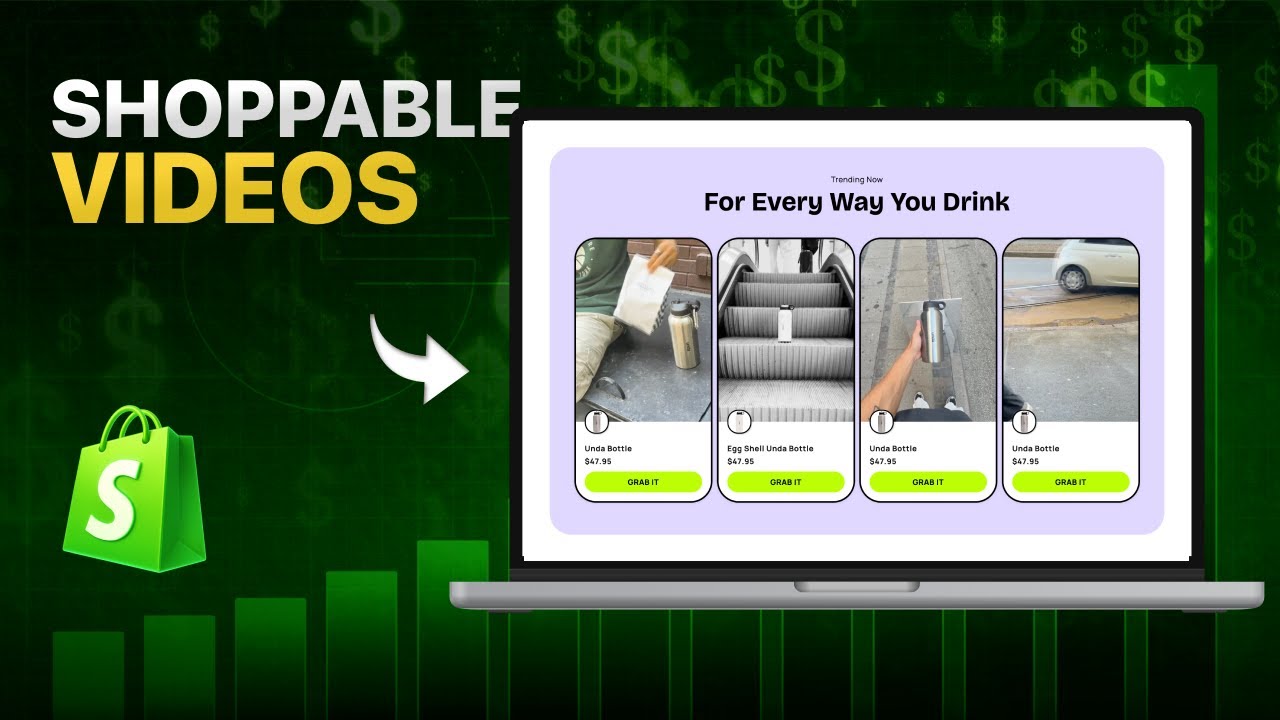
A shoppable video on Shopify is an interactive video that lets shoppers tap products, view details, and sometimes add items to cart while watching. To add one, install a compatible app, upload or import your video, tag the featured products, place the widget in your theme, and test the experience on mobile and desktop. This works best on product pages, collection pages, and homepage sections where discovery matters.
At a glance: install a shoppable-video app, upload or import video, tag featured products, choose a widget format, add it to a theme section or app block, then test and track views, clicks, and carts.
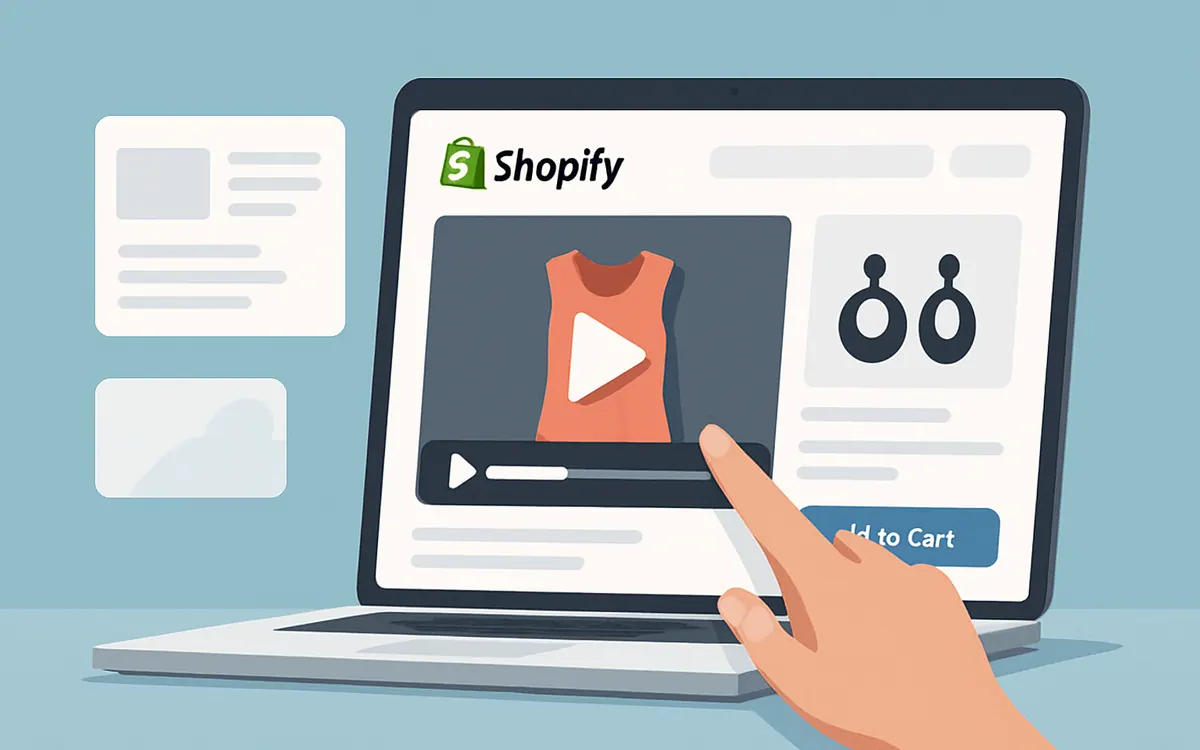
Unlike a standard product video, a shoppable video includes interactive product tags, hotspots, product details, or add-to-cart actions. This lets shoppers move from watching a product to buying it without searching through the rest of the store.
The basic process is:
- Choose the products you want to feature.
- Prepare or repurpose relevant videos.
- Install a Shopify shoppable-video app.
- Import or upload each video.
- Tag the products shown in the video.
- Create a video widget or carousel.
- Add the widget to your Shopify theme.
- Test the experience on mobile and desktop.
- Measure views, product clicks, carts, and purchases.
This guide explains each step and shows where shoppable videos should be placed across a Shopify store.
What Is a Shoppable Video?
A shoppable video is an interactive video that connects the content directly to one or more products.
The video may contain:
- Clickable product tags
- Product hotspots
- Product names and prices
- Product-detail overlays
- Add-to-cart buttons
- Links to product pages
- Multiple featured products
Shopify defines shoppable videos as interactive videos with embedded product links. Viewers can use those links or tags to view products and, depending on the implementation, add items to their cart without leaving the video experience.
For example, a fashion brand might publish a 20-second outfit video featuring:
- A jacket
- A shirt
- A pair of jeans
- A handbag
Instead of making the shopper search for each item, the video can display all four products as selectable options.
The content creates interest. The shopping layer turns that interest into an action.
Standard Shopify Video vs Shoppable Video
Shopify already lets merchants add standard videos to product media.
A merchant can:
- Upload a video file
- Add an existing media file
- Embed a YouTube video
- Embed a Vimeo video
Shopify currently accepts uploaded product videos that are up to 10 minutes long, up to 1 GB in size, and up to 4K resolution. Supported uploaded file types include .mp4, .mov, and .webm.
That is useful for demonstrating a product, but native product media does not automatically make every item inside the video interactive.
| Feature | Standard product video | Shoppable video |
|---|---|---|
| Shows the product in use | Yes | Yes |
| Appears in product media gallery | Yes | App-dependent |
| Includes clickable product tags | No | Yes |
| Features multiple products | Limited | Yes |
| Adds products to cart while watching | No | App-dependent |
| Can appear as stories or carousels | Theme-dependent | Common |
| Tracks video-specific clicks | Limited | App-dependent |
| Tracks video add-to-cart actions | Limited | App-dependent |
Use a standard product video when the shopper is already on the correct product page and only needs more information.
Use a shoppable video when the video features multiple products, appears on a discovery page, or needs to generate a direct shopping action.
What You Need Before You Start
Prepare four things before installing a video app.
1. A product or collection to promote
Start with products that have:
- Healthy inventory
- Strong product pages
- Clear images
- Competitive pricing
- Reliable fulfillment
- Existing customer interest
Do not use video to push a product that is regularly unavailable or poorly presented.
Video can create more demand. It cannot repair broken fulfillment.
2. Relevant videos
You can use:
- Product demonstrations
- Unboxing videos
- Tutorials
- Before-and-after videos
- Comparison videos
- Customer videos
- Creator testimonials
- TikTok videos
- Instagram Reels
- Brand videos
Shopify identifies product demonstrations, unboxings, comparisons, tips, reviews, and brand stories as common shoppable-video formats.
The best video depends on the objection you need to remove.
| Customer question | Useful video format |
|---|---|
| How does it work? | Product demonstration |
| What will I receive? | Unboxing |
| Which option should I choose? | Comparison |
| Will it work in real life? | Customer or creator video |
| How do I use it? | Tutorial |
| How does it fit or look? | Try-on or lifestyle video |
| Why should I trust the brand? | Founder or behind-the-scenes video |
3. Accurate Shopify product data
Confirm that each featured product has:
- An active product status
- Online Store availability
- Correct pricing
- Current inventory
- Clear variant names
- High-quality product images
- A usable product description
The product tag inside the video should lead to a clean buying experience.
If the shopper clicks a product and finds unclear variants, missing images, or surprise shipping costs, the video is not the constraint anymore. The product page is.
4. A compatible Shopify theme
Many shoppable-video apps use Shopify theme app extensions and app blocks.
Shopify app blocks let merchants add app content through the theme editor without directly editing theme code. App blocks work in compatible JSON templates, commonly associated with Online Store 2.0 themes, and in sections that support app blocks.
If an app block does not appear in the theme editor, check:
- Whether the theme is an Online Store 2.0 theme
- Whether the selected template supports app blocks
- Whether the relevant section accepts app content
- Whether the app requires an app embed to be activated
- Whether the theme needs to be updated
- Whether the app supports your theme
Duplicate your live theme before making major changes.
How to Add Shoppable Videos to Shopify Step by Step
Step 1: Choose the Right Video
Do not start by uploading every video your brand has ever created.
Choose one video that satisfies these conditions:
- It clearly shows the product.
- It answers one buying question.
- The featured product is easy to identify.
- The video remains understandable without sound.
- The content matches the page where it will appear.
- The product is available for purchase.
A good first test is usually:
- One product
- One video
- One page
- One primary action
For example:
A 15-second demonstration of a stain-resistant sofa placed on the sofa product page, with one product tag and one add-to-cart action.
That is easier to measure than a homepage carousel containing 25 unrelated videos.
Step 2: Install a Shoppable-Video App
Shopify's native product media supports uploaded videos and YouTube or Vimeo embeds, but interactive product tags generally require a compatible app or custom implementation.
When evaluating an app, check:
- Supported video sources
- Number of videos allowed
- Number of widgets
- Product tags per video
- Monthly video-view limits
- Analytics
- Mobile responsiveness
- Theme compatibility
- Product-page placement
- Homepage placement
- Collection-page placement
- Add-to-cart functionality
- Support availability
- Pricing as usage increases
Do not select an app based only on the cheapest monthly price.
A low-priced app becomes expensive when it cannot support the pages, traffic, or analytics your store needs.
Step 3: Upload or Import Your Videos
Depending on the app, videos may be added through:
- Manual file upload
- TikTok import
- Instagram import
- Existing product videos
- Creator or UGC libraries
- External video tools
Hyper Shoppable Videos currently supports product videos, TikToks, Instagram Reels, and UGC. Its App Store listing describes manual video uploads, social-video imports on eligible plans, product tagging, hotspots, and multiple storefront widget formats.
When importing content from another platform, review:
- Aspect ratio
- Watermarks
- Music rights
- Creator usage rights
- Captions
- Product availability
- Original calls to action
A TikTok ending with "click the link in our bio" should not be copied blindly onto a Shopify product page.
Replace the platform-specific instruction with a storefront action such as:
- Shop the look
- View product
- Choose your color
- Add to cart
- See available sizes
Step 4: Connect the Video to the Correct Products
After the video is uploaded, select the products featured in it.
A product tag should match what is visible at the moment it appears.
For a single-product demonstration, one persistent product tag may be enough.
For a multi-product video, tags can appear when each item becomes relevant.
Example timeline:
| Video time | Product shown | Tag action |
|---|---|---|
| 0–4 seconds | Jacket | Display jacket tag |
| 5–8 seconds | Shirt | Display shirt tag |
| 9–12 seconds | Jeans | Display jeans tag |
| 13–16 seconds | Full outfit | Display all products |
Do not tag six products in the opening second when the shopper has not seen any of them yet.
The product interaction should support the content—not cover it.
Verify product and variant behavior
Check whether the video action:
- Opens a product detail overlay
- Sends the shopper to the product page
- Lets the shopper choose a variant
- Adds the default variant to cart
- Shows unavailable variants
- Reflects current inventory
Never assume the default variant is the correct variant.
If the product has size, color, material, or bundle options, make sure the shopper can make the necessary choice before the item is added to cart.
Step 5: Create the Video Widget
A widget controls how one or more videos appear on the storefront.
Common formats include:
- Embedded video
- Video carousel
- Vertical stories
- Floating video
- Video gallery
- Product-page video
- Mobile story widget
- Homepage section
Hyper currently lists video widgets, embedded videos, carousels, mobile-responsive layouts, product hotspots, and video stories among its storefront capabilities.
Choose the widget based on the shopper's intent.
Embedded video
Best for:
- Product demonstrations
- Tutorials
- Product-page explanations
- Founder messages
Carousel
Best for:
- Multiple customer videos
- Several product demonstrations
- Collection pages
- Homepage social proof
Stories-style widget
Best for:
- Mobile visitors
- Short vertical videos
- TikTok or Reels content
- Fashion, beauty, food, and lifestyle products
Floating video
Best for:
- Guided explanations
- Announcements
- Product education
Use floating video carefully. It can become intrusive when it blocks navigation, product information, accessibility controls, or the checkout interface.
Step 6: Add the Shoppable-Video Widget to Your Theme
The exact steps depend on the app and theme, but a typical app-block workflow is:
- Go to Online Store > Themes.
- Duplicate your active theme.
- Click Customize on the duplicated theme.
- Open the template where the video should appear.
- Click Add section or Add block.
- Open the Apps section.
- Select the shoppable-video app block.
- Choose the video widget you created.
- Reposition the block.
- Configure its display settings.
- Preview the page.
- Save the theme.
Shopify's theme editor lets merchants add, remove, reposition, configure, and preview supported app blocks before publishing changes.
Possible templates include:
- Homepage
- Default product
- Specific product
- Default collection
- Specific collection
- Landing page
- Custom page
Do not place the same widget everywhere by default.
Match the content to the page.
A video about hiking backpacks belongs on:
- The hiking-backpack collection
- Relevant backpack product pages
- A hiking-gear landing page
It probably does not belong on every product page in the store.
Step 7: Choose the Best Video Placement
Video placement determines what job the content performs.
Homepage
Use homepage shoppable videos for:
- Product discovery
- New arrivals
- Bestsellers
- Seasonal campaigns
- Brand storytelling
- Creator content
Place the video near a relevant product or collection section.
Do not make visitors watch a video before they can understand what the store sells.
Product pages
Use product-page videos to:
- Show the product in use
- Explain size or fit
- Demonstrate setup
- Answer objections
- Show customer results
- Compare variants
Place the video near the product media, product description, or buying controls.
The correct position depends on the product.
For a visually simple product, video may be secondary.
For a product that requires demonstration, video may need to appear before long-form specifications.
Collection pages
Use collection-page videos to:
- Explain the product category
- Show several products together
- Help shoppers choose
- Promote a seasonal look
- Demonstrate common use cases
A collection video should not distract shoppers from filtering and comparing products.
Keep it compact and make it easy to dismiss or scroll past.
Landing pages
Landing pages are useful for:
- Influencer campaigns
- Product launches
- Paid advertising
- Gift guides
- Seasonal promotions
- Bundles
- New collections
Match the video with the campaign promise.
If an advertisement shows a creator using a specific product, the landing page should show that same video and product—not a generic homepage.
Blog articles
Shoppable videos can support:
- Tutorials
- Buying guides
- Recipes
- Style guides
- Product comparisons
- Gift guides
For example, a skincare routine article could include a video featuring each product used in the routine.
The article educates. The video demonstrates. The product tags create the buying path.
Step 8: Optimize the Video for Mobile
A shoppable-video experience should be tested on an actual phone—not only in the Shopify theme preview.
Check:
- Whether the video loads
- Whether text is readable
- Whether captions fit
- Whether product tags cover the subject
- Whether buttons are easy to tap
- Whether the close button works
- Whether the widget overlaps chat or accessibility tools
- Whether variant selection is usable
- Whether the cart opens correctly
- Whether the video remains useful without sound
Vertical video is generally suitable for TikTok-style stories and mobile discovery.
Horizontal or square video may work better for:
- Desktop demonstrations
- Product-detail sections
- Technical products
- Wide lifestyle scenes
The format should match the widget and the page.
Step 9: Test the Complete Shopping Journey
Do not stop after confirming that the video plays.
Test the entire journey:
- Open the page.
- Start the video.
- Select a product tag.
- Review the product information.
- Choose a variant.
- Add the item to cart.
- Open the cart.
- Continue to checkout.
- Return to the page.
- Test another product.
Repeat this on:
- Desktop
- iPhone
- Android
- Wi-Fi
- Mobile data
- Logged-in customer session
- New customer session
Also test:
- Out-of-stock products
- Sale products
- Products with several variants
- Products with subscription options
- Products with bundles
- Products available in multiple markets
The widget is not successful because it appears on the page.
It is successful when the shopper can complete the intended action without confusion.
Step 10: Publish and Measure Performance
Publish the widget only after the test version works.
Then measure:
- Video impressions
- Video views
- Completion rate
- Product-tag clicks
- Product-detail opens
- Add-to-cart actions
- Click-through rate
- Add-to-cart rate
- Purchases
- Revenue or gross profit attributed to video
Hyper currently lists tracking for video views, clicks, and add-to-cart events in its analytics.
Basic video click-through rate
Video click-through rate = Product clicks from video ÷ Video views × 100
Example:
- Video views: 2,000
- Product clicks: 160
160 ÷ 2,000 × 100 = 8%
Video add-to-cart rate
Video add-to-cart rate = Add-to-cart actions from video ÷ Video views × 100
Example:
- Video views: 2,000
- Add-to-cart actions: 60
60 ÷ 2,000 × 100 = 3%
Gross profit generated
Video-attributed gross profit = Video-attributed orders × Gross profit per order
Example:
- Video-attributed orders: 20
- Gross profit per order: $24
20 × $24 = $480
If the app and production cost total $150 per month, the illustrative monthly contribution after those costs is:
$480 gross profit - $150 costs = $330
This example is not a performance promise. It shows how to evaluate the economics.
Views are not the final outcome. Gross profit is.
Best Videos to Make Shoppable
Not every video needs product tags.
Make a video shoppable when there is a clear connection between the content and a product decision.
Product demonstration
Show:
- What the product does
- How it works
- The result
- The product tag
Example: A portable blender mixing frozen fruit, followed by a product card and add-to-cart button.
Try-on video
Show:
- Fit
- Movement
- Size worn
- Color
- Product tag
Useful for: Clothing, jewelry, footwear, accessories, cosmetics.
Tutorial
Show:
- The problem
- Each step
- Products used
- Final result
Useful for: Beauty, food, home improvement, crafts, electronics, fitness.
Comparison video
Show:
- Option A
- Option B
- Key differences
- Which customer should choose each
- Separate product tags
Do not make every comparison end with "buy the expensive one."
Recommend the correct product for each use case. That creates goodwill.
Customer or creator video
Show:
- Real usage
- Specific product
- Honest context
- Product tag
- Permission or usage rights
Do not present an incentivized testimonial as independent when it is not.
Bundle or complete-the-look video
Show several complementary products and let the shopper purchase each one.
Examples:
- Complete outfit
- Skincare routine
- Desk setup
- Home décor scene
- Recipe ingredients
- Travel kit
This format can increase order value because the video reveals the shopper's next problem immediately after the first product creates interest.
Common Shoppable-Video Mistakes
1. Adding too many product tags
More tags do not automatically create more sales.
Too many options can make the video harder to watch and the purchase decision harder to make.
Start with one to three primary products per short video.
Add more only when the video genuinely presents a complete set or routine.
2. Using unrelated social videos
A viral video about your brand is not automatically a useful product video.
Ask:
- Is the product visible?
- Is the product identifiable?
- Does the content answer a buying question?
- Is there a natural shopping action?
If not, keep it as brand content rather than forcing a product tag into it.
3. Sending every click to the homepage
The shopper clicked a specific product.
Send them to:
- The product
- The relevant variant
- A product overlay
- The correct collection
- The cart
Do not make them search again.
Shoppable content is valuable because it removes steps between interest and purchase.
4. Hiding the shopping interaction
Make it clear that the video is interactive.
Use:
- Visible product icons
- "Shop video" labels
- Product thumbnails
- Clear add-to-cart buttons
- Timed hotspots
- Short instructions
Do not assume every shopper knows where to tap.
5. Ignoring mobile collisions
A video widget may overlap with:
- Chat widgets
- Cookie banners
- Accessibility controls
- Sticky add-to-cart bars
- Navigation
- Promotional pop-ups
Open the live page on several devices and check the full interface.
6. Autoplaying with sound
Unexpected sound can create a poor experience.
When autoplay is used, keep it muted and provide visible playback controls.
Also provide captions or meaningful on-screen text when spoken audio is necessary to understand the content.
7. Measuring only views
A video can attract attention without helping shoppers buy.
Track the sequence:
View → Product click → Add to cart → Purchase
The biggest drop-off is the constraint.
- High views and low product clicks suggest weak relevance or unclear tags.
- High clicks and low carts suggest a product, price, variant, or page problem.
- High carts and low purchases suggest checkout, shipping, trust, or payment friction.
- Strong purchases and weak profit suggest a margin or acquisition problem.
Fix the largest meaningful leak first.
8. Adding video to every page immediately
Start with a controlled test.
A practical first test is:
- One high-traffic product page
- One relevant video
- One widget
- One product tag
- Four weeks of data
Then compare performance with:
- A previous period
- A similar page
- An A/B test, when available
Do not roll out 100 videos before learning what makes one work.
How to Use Hyper Shoppable Videos on Shopify
Hyper Shoppable Videos is designed to turn product videos, TikToks, Instagram Reels, and UGC into interactive Shopify video widgets.
Its current Shopify App Store listing includes:
- Product tagging
- Product hotspots
- Add-to-cart actions while watching
- Video carousels
- Mobile stories
- Embedded video widgets
- Homepage placement
- Product-page placement
- Collection-page placement
- Landing-page placement
- Video views, clicks, and add-to-cart analytics
A typical implementation is:
- Install Hyper Shoppable Videos.
- Upload or import a product video.
- Select the product shown in the video.
- Add the product tag or hotspot.
- Create a video widget.
- Open the Shopify theme editor.
- Add the Hyper app block to the desired template.
- Select the widget.
- Preview it on desktop and mobile.
- Publish and monitor its analytics.
Interface labels and plan allowances can change, so verify the current in-app instructions and App Store listing before configuring a live store.
Explore Hyper Shoppable Videos on the Shopify App Store.
Frequently Asked Questions
How do I add shoppable videos to Shopify?
Install a compatible shoppable-video app, upload or import a video, connect the video with the products it features, create a widget, and add the app block to the appropriate Shopify theme template.
Can Shopify videos include an add-to-cart button?
Standard Shopify product media does not automatically include interactive add-to-cart controls inside the video. A compatible Shopify app or custom development is generally required.
Can I add TikTok videos to my Shopify store?
Yes. Some Shopify video apps let merchants import TikTok videos and display them as storefront widgets. Review usage rights, watermarks, music licensing, formatting, and calls to action before publishing.
Can I add Instagram Reels to Shopify?
Yes. Compatible apps can import or display Instagram Reels on Shopify storefront pages. Some apps also let merchants connect products to the imported videos.
Where should I place shoppable videos?
Useful placements include product pages, the homepage, collection pages, landing pages, tutorials, buying guides, and campaign pages. The video should match the visitor's intent on each page.
What is the difference between a product video and a shoppable video?
A product video demonstrates or explains a product. A shoppable video adds interactive buying elements such as product tags, hotspots, product details, links, or add-to-cart actions.
Can one shoppable video feature multiple products?
Yes. A video can contain several product tags when multiple products appear. Keep the number of tags manageable and show each tag when the relevant product is visible.
Do shoppable videos work on mobile?
They can, but mobile responsiveness depends on the app, widget, theme, and configuration. Test tap targets, captions, product overlays, variants, cart actions, and overlapping widgets on real devices.
Do Shopify themes support shoppable-video app blocks?
Compatible Online Store 2.0 themes and sections that accept Shopify app blocks can display supported shoppable-video blocks. Vintage themes or statically rendered sections may require a different setup.
How do I measure shoppable-video performance?
Track video views, completion, product clicks, add-to-cart actions, purchases, attributed revenue, and gross profit. Diagnose the biggest drop-off between each stage.
Should videos autoplay on Shopify?
Autoplay can increase video exposure, but it should generally be muted, controllable, mobile-friendly, and tested for performance and user experience.
Are shoppable videos good for every Shopify store?
No. They are most useful when products benefit from demonstration, styling, tutorials, social proof, comparison, or multiple-product discovery. A simple commodity product may not require an interactive-video experience.
How do I add shoppable video to Shopify without coding?
Use a no-code Shopify app that allows you to upload videos, tag products, and embed them into your store.
Do I need a developer for shoppable video?
No. Most modern apps are designed for non-technical users.
Does shoppable video increase AOV?
Yes. It encourages bundling, improves discovery, and reduces friction.
Is shoppable video mobile-friendly?
Most Shopify apps optimize videos for mobile automatically.
What type of videos work best?
Videos that showcase multiple products, demonstrate usage, and highlight combinations perform best.
Final Checklist
Before publishing a shoppable video:
- Select a relevant, available product.
- Use a video that answers one buying question.
- Confirm that you have permission to use the video.
- Replace social-platform-specific calls to action.
- Tag the correct Shopify product.
- Check variant-selection behavior.
- Keep product tags visible but unobtrusive.
- Choose the correct widget format.
- Place the widget on a relevant page.
- Test mobile and desktop layouts.
- Test add-to-cart and checkout actions.
- Check out-of-stock behavior.
- Confirm that analytics are recording.
- Measure clicks, carts, purchases, and gross profit.
- Expand only after the first implementation produces useful data.
The objective is not to add more video.
The objective is to reduce the distance between:
"I want that" → "I found it" → "I bought it"
Use standard product video when education is enough.
Use shoppable video when the missing step is a direct buying action.
Sources
- Shopify: What Is Shoppable Video?
- Shopify Help Center: Product Media Types and Video Requirements
- Shopify Developer Documentation: App Blocks for Themes
- Hyper Shoppable Videos on the Shopify App Store
- Shopify Developer Documentation: UX for Theme App Extensions
- Shopify: Types and Benefits of Shoppable Content